Custom WordPress
& Print Design
tailored for you
As a website and print design agency with over 27 years of creative expertise, I specialize in WordPress website design, graphic print design, and branding solutions for small to medium sized businesses and non-profits. From eye-catching visuals to strategic website development, I deliver designs that elevate your brand and drive real results—both online and in print.
You bring the ideas, and I’ll bring them to life!
Let’s turn your vision into something amazing.
Custom WordPress
& Print Design
tailored for you
As a website and print design agency with over 27 years of creative expertise, I specialize in WordPress website design, graphic print design, and branding solutions for small to medium sized businesses and non-profits. From eye-catching visuals to strategic website development, I deliver designs that elevate your brand and drive real results—both online and in print.
You bring the ideas, and I’ll bring them to life!
Let’s turn your vision into something amazing.
Recent Design Projects
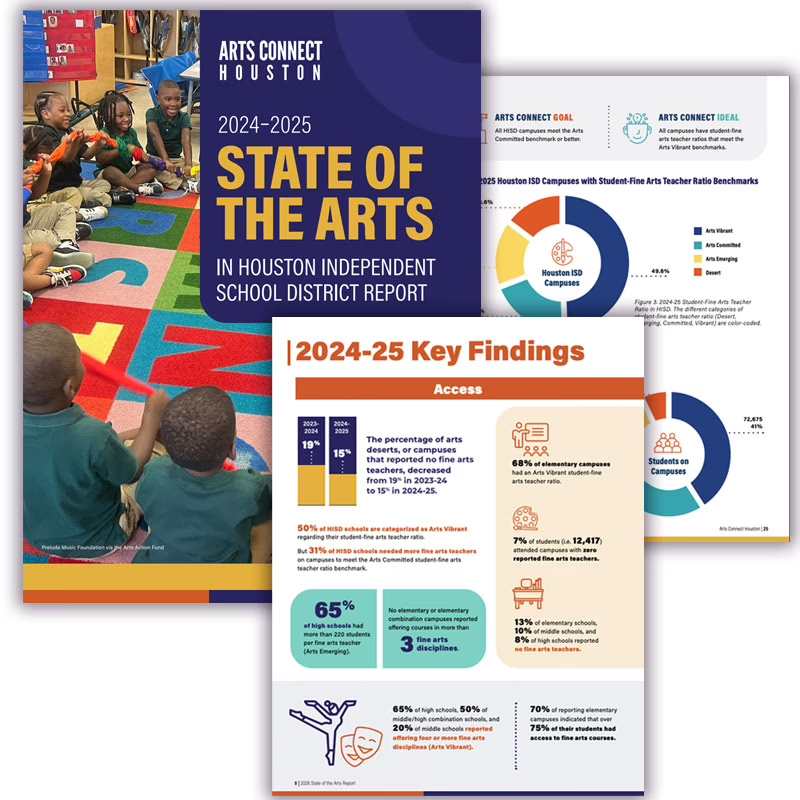
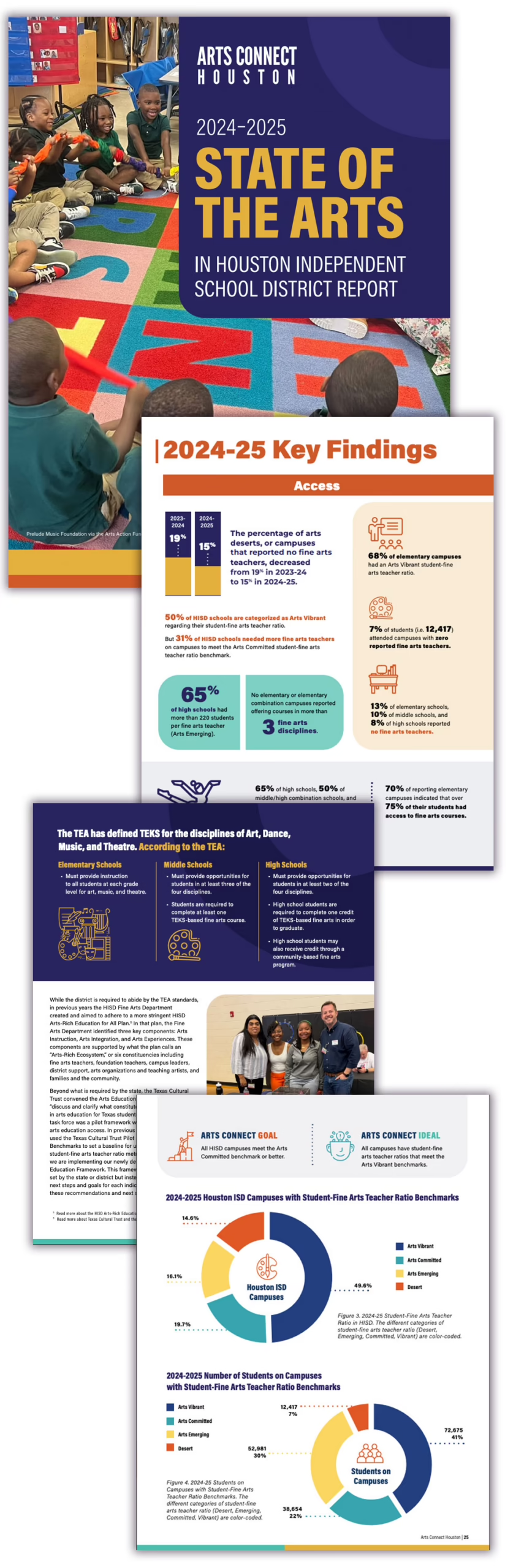
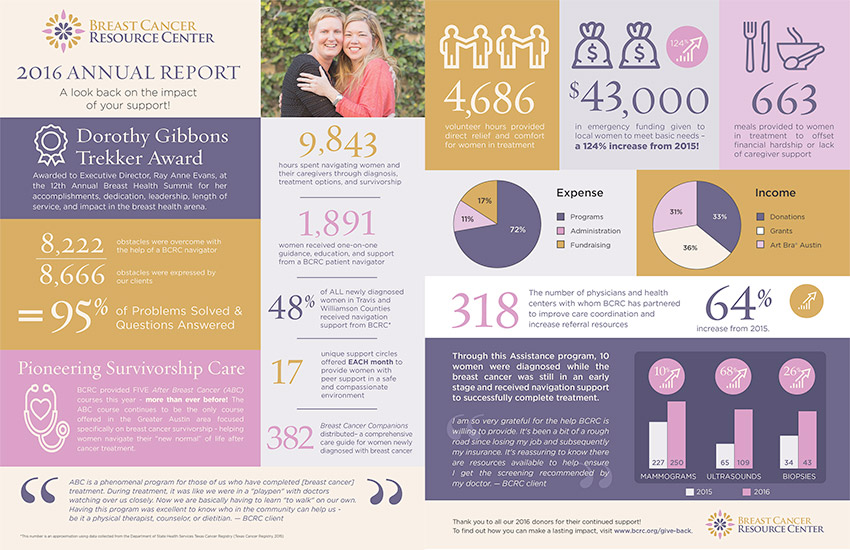
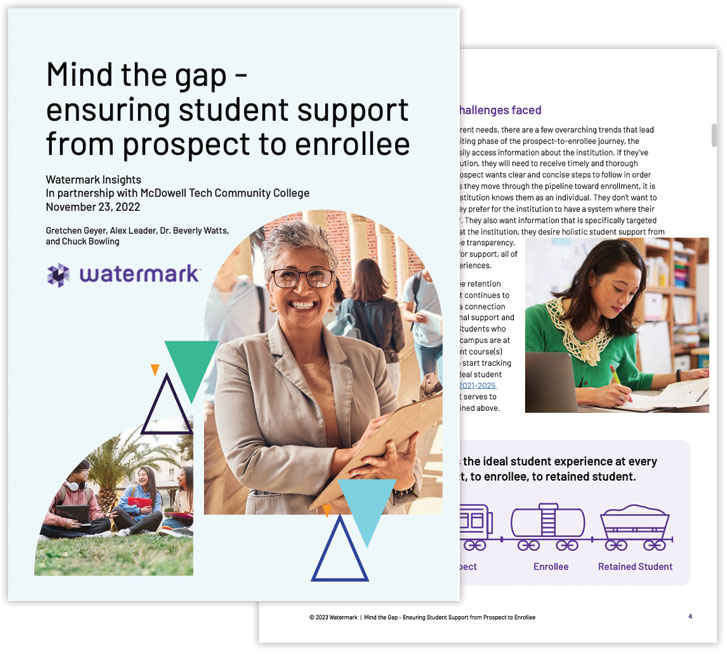
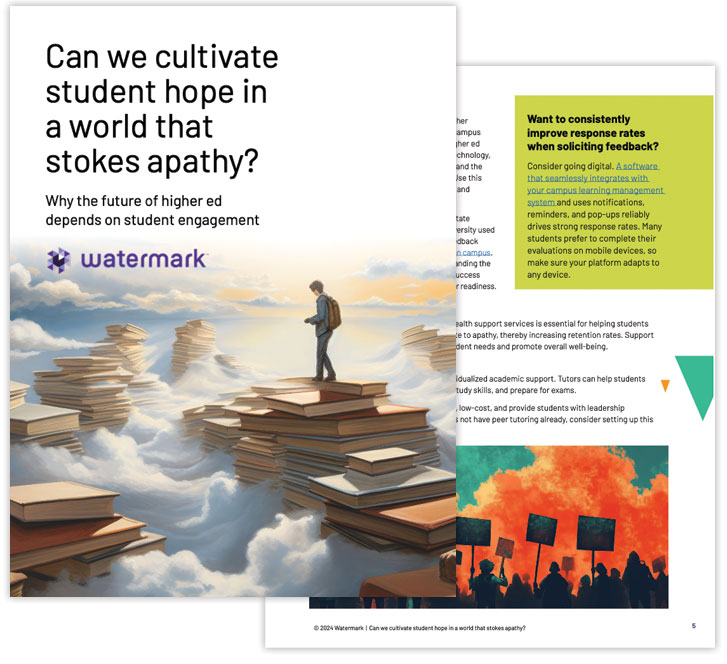
Annual Report Design
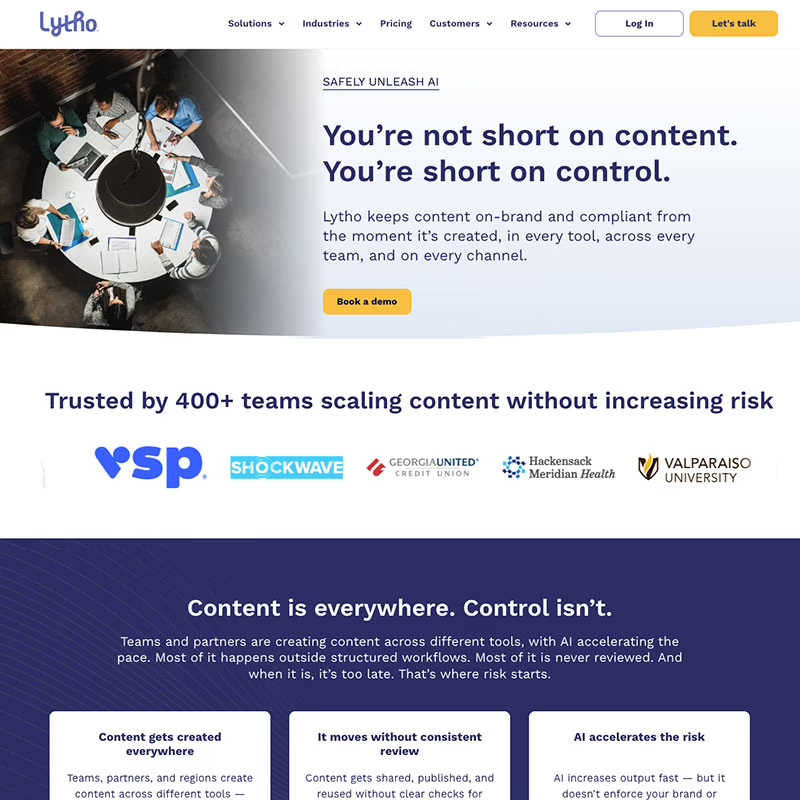
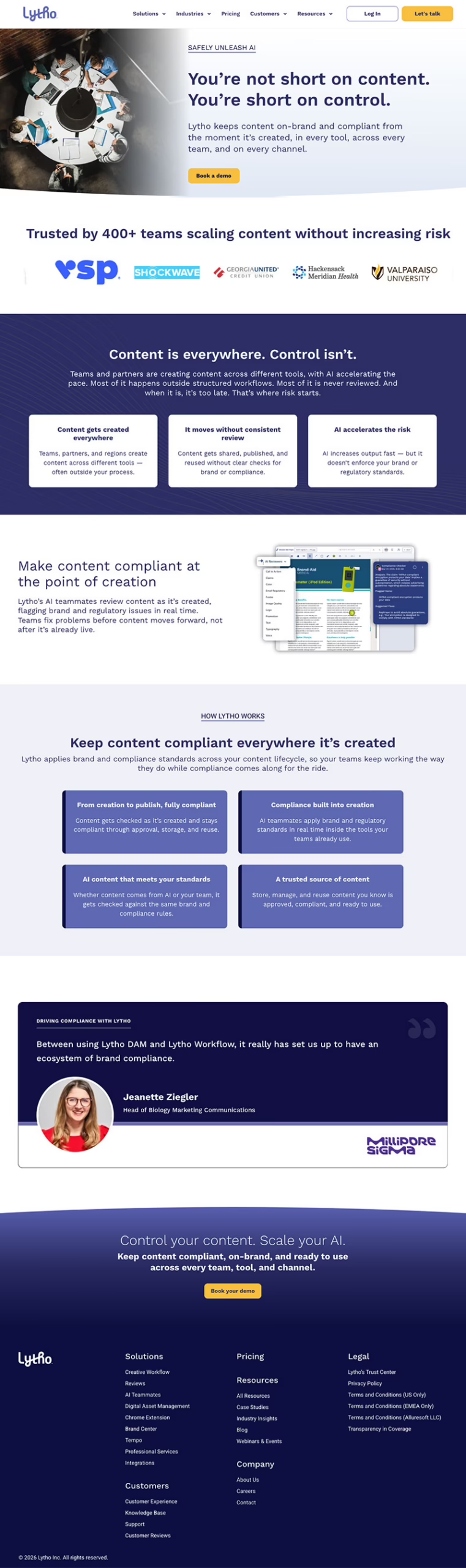
Lytho Website Redesign
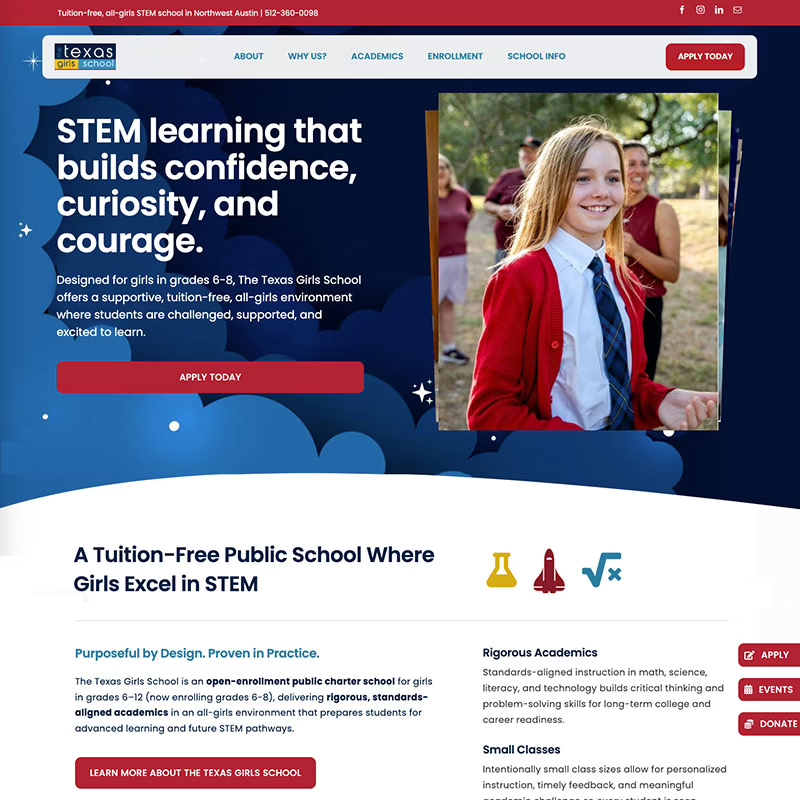
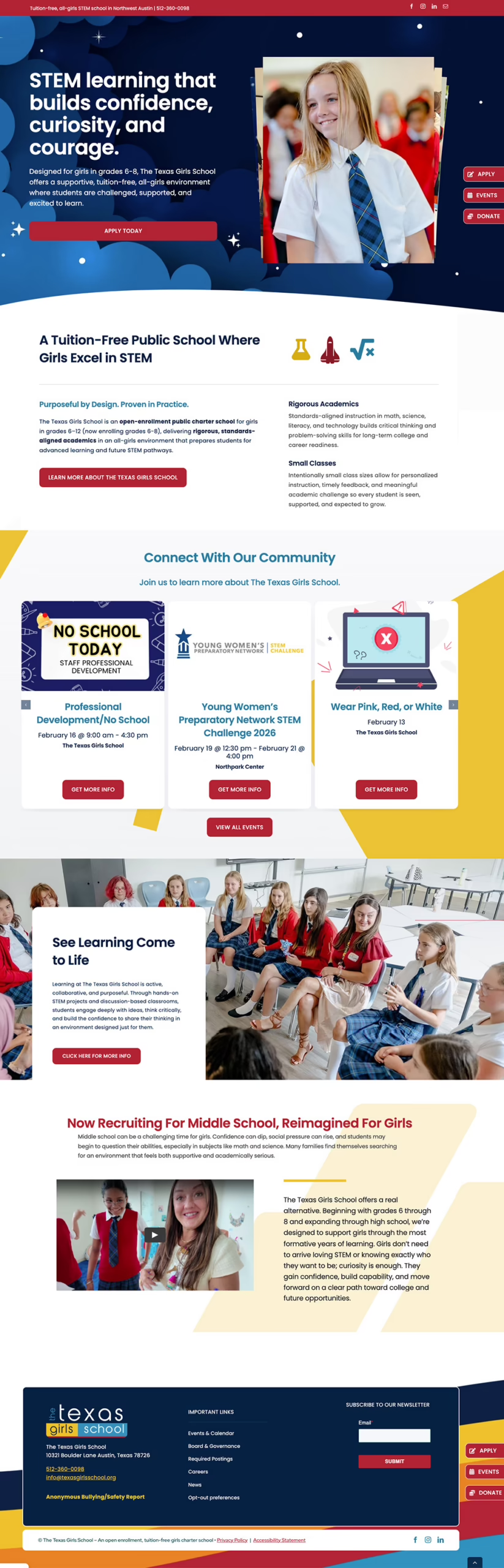
The Texas Girls School Website home page
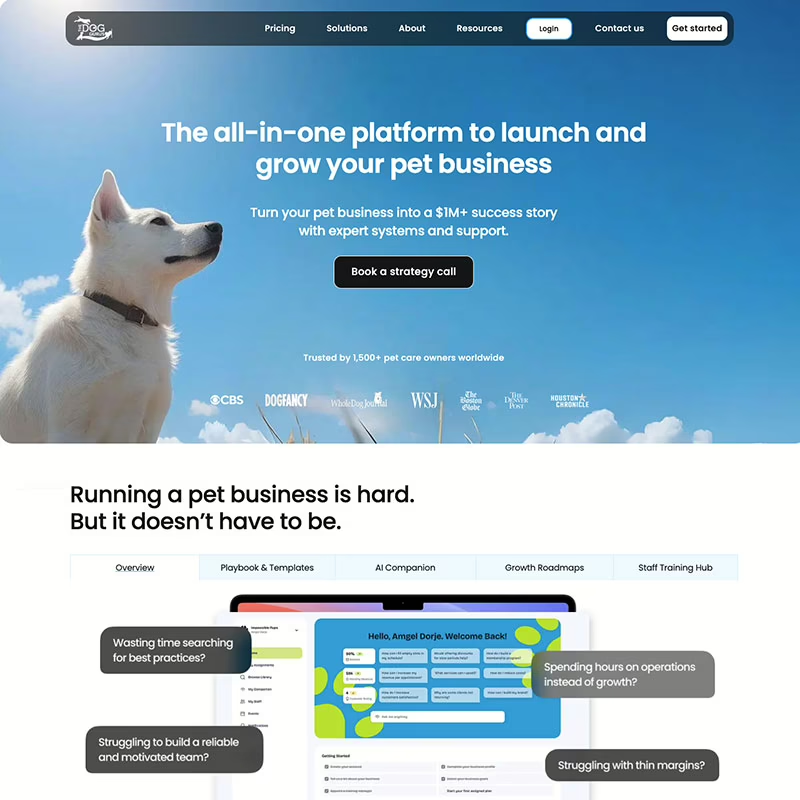
The Dog Gurus Website Redesign
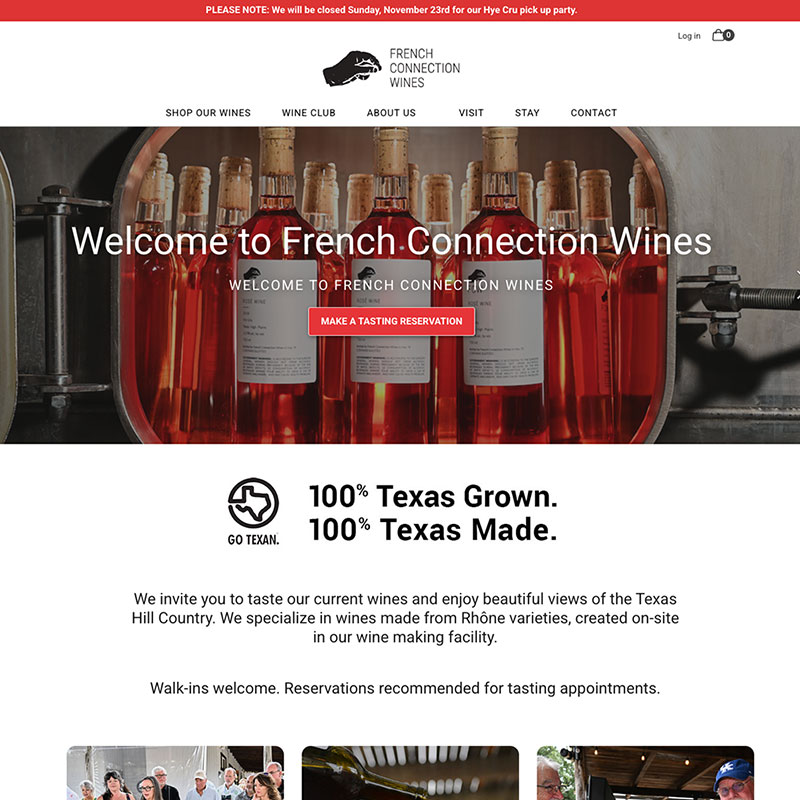
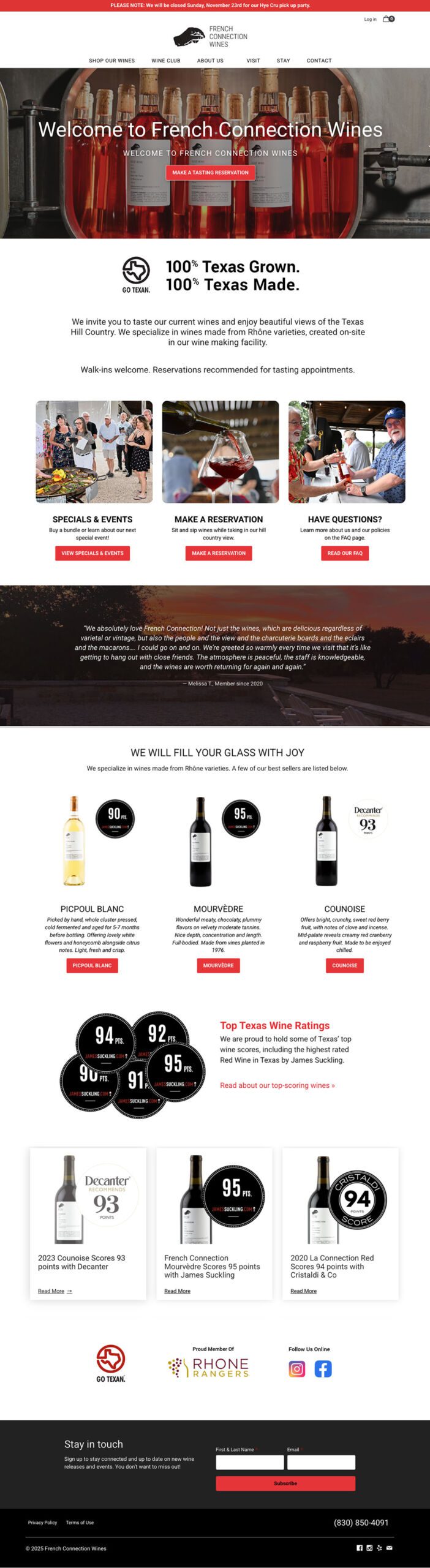
French Connection Wines - Winery Website
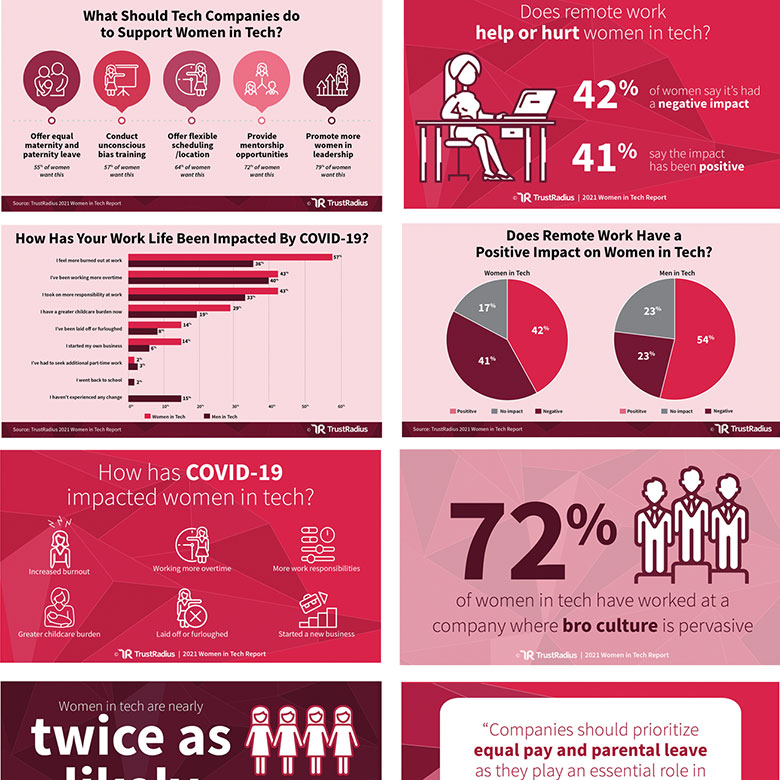
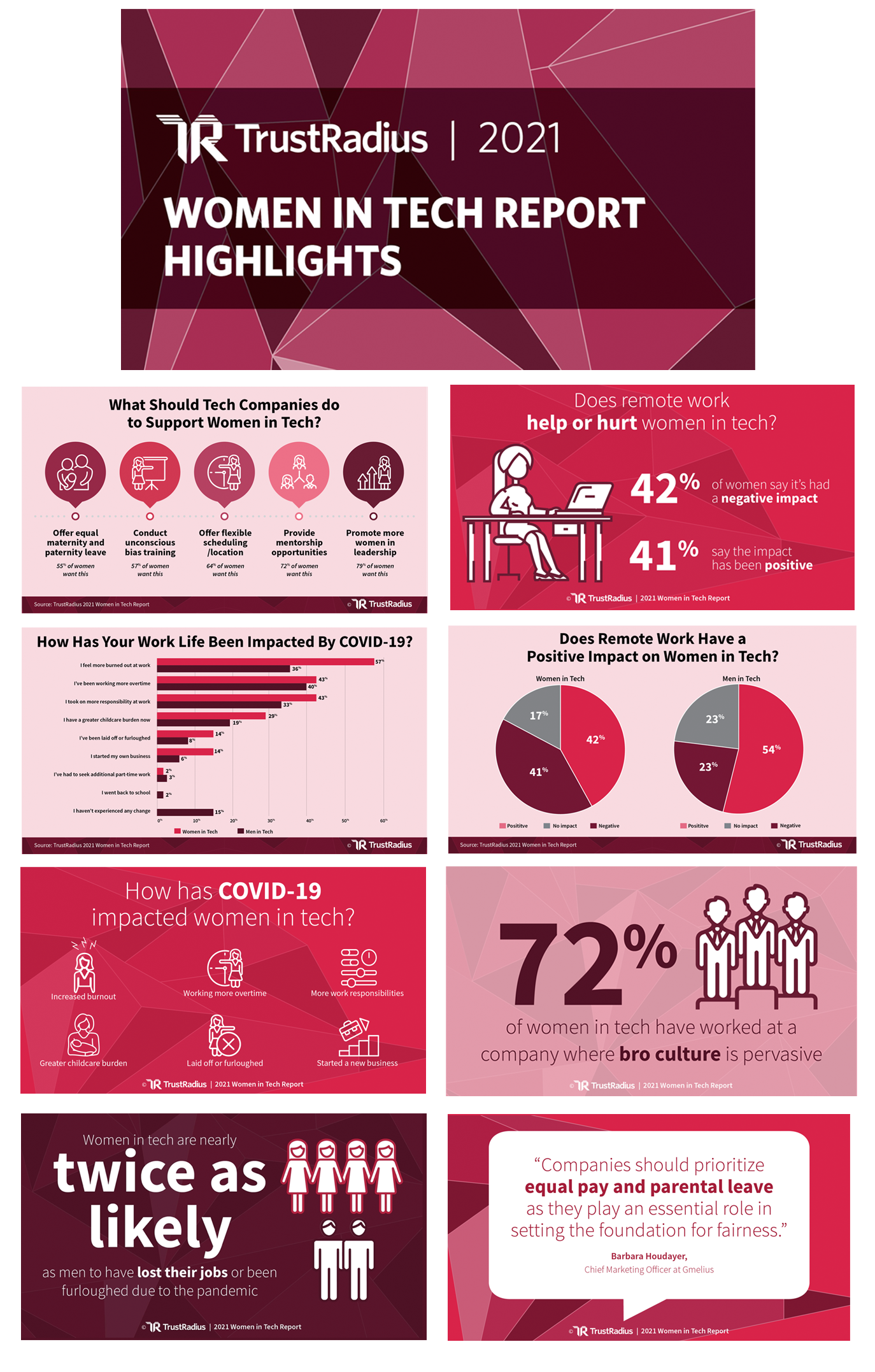
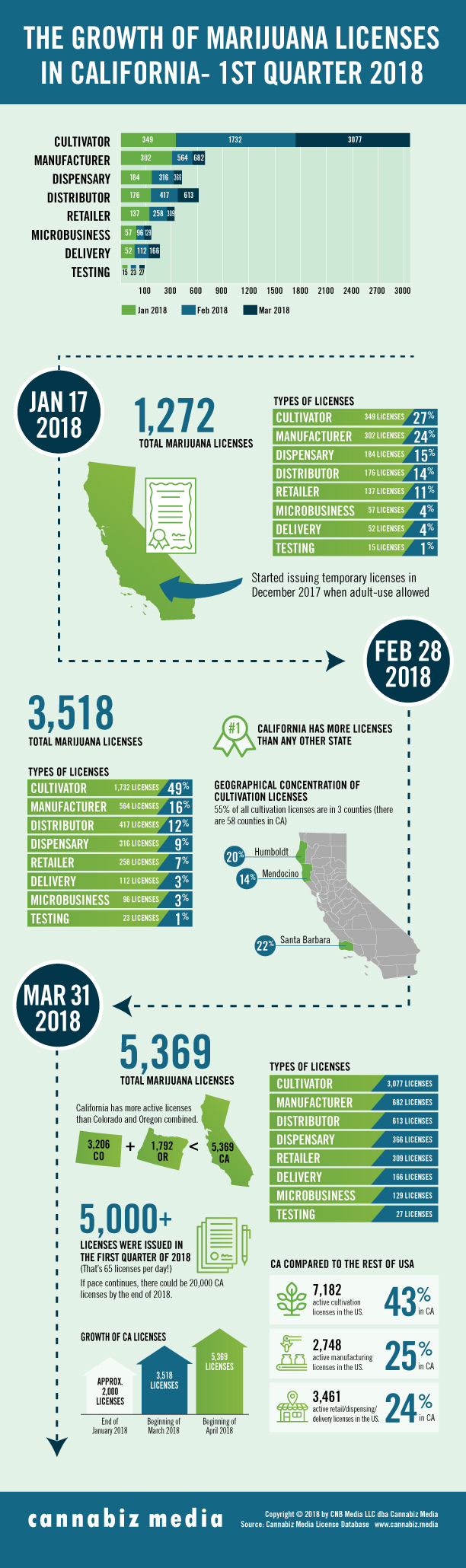
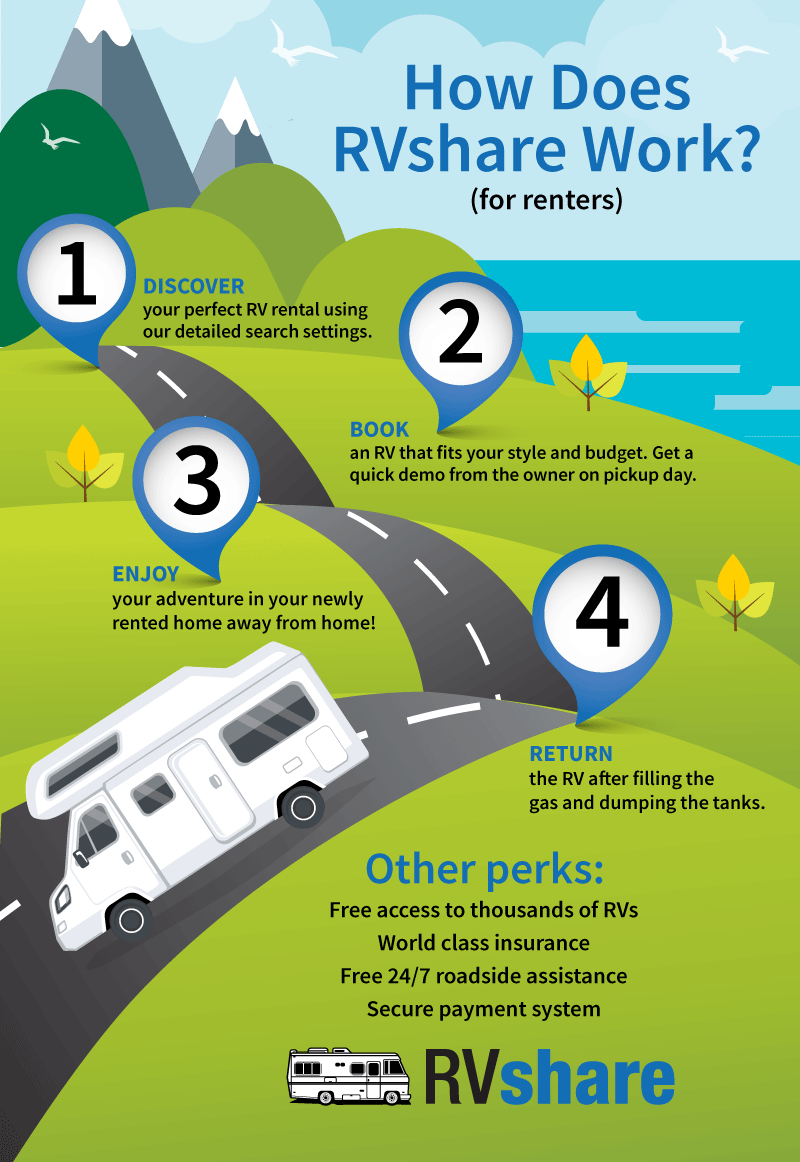
Social Media Infographic design project
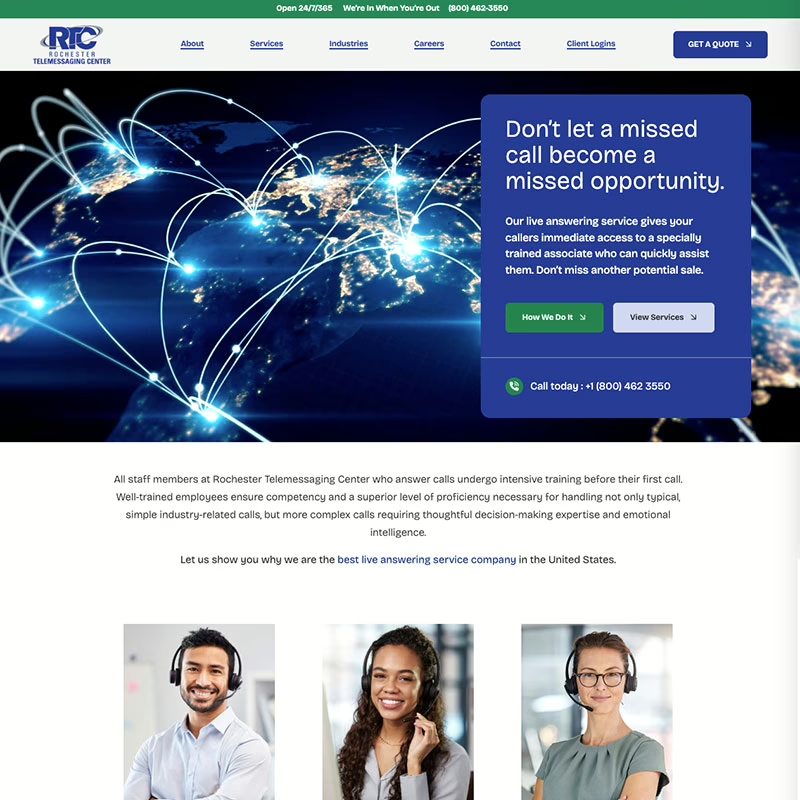
RTC Website redesign project
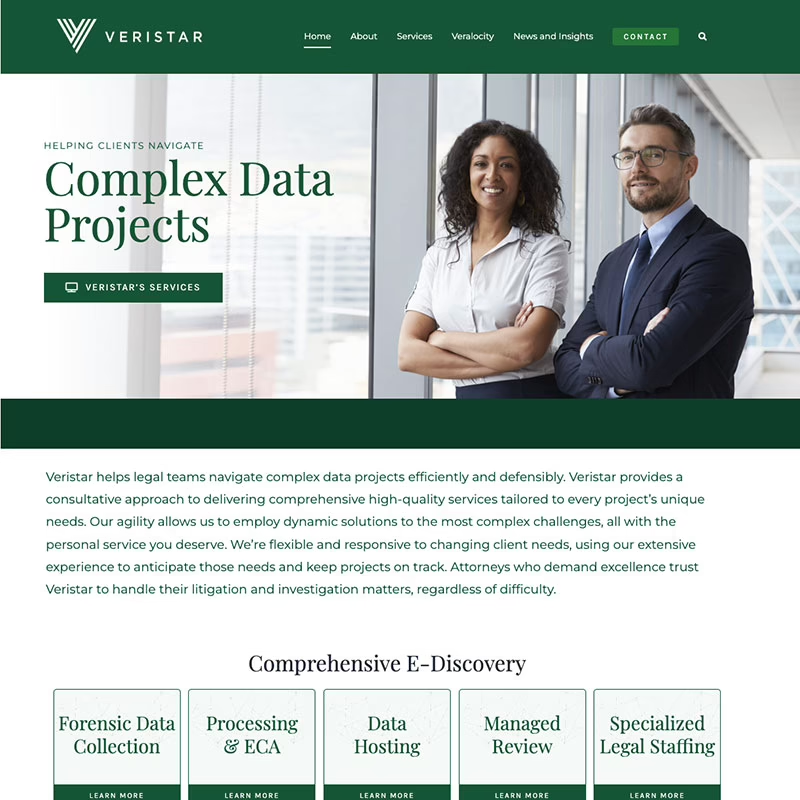
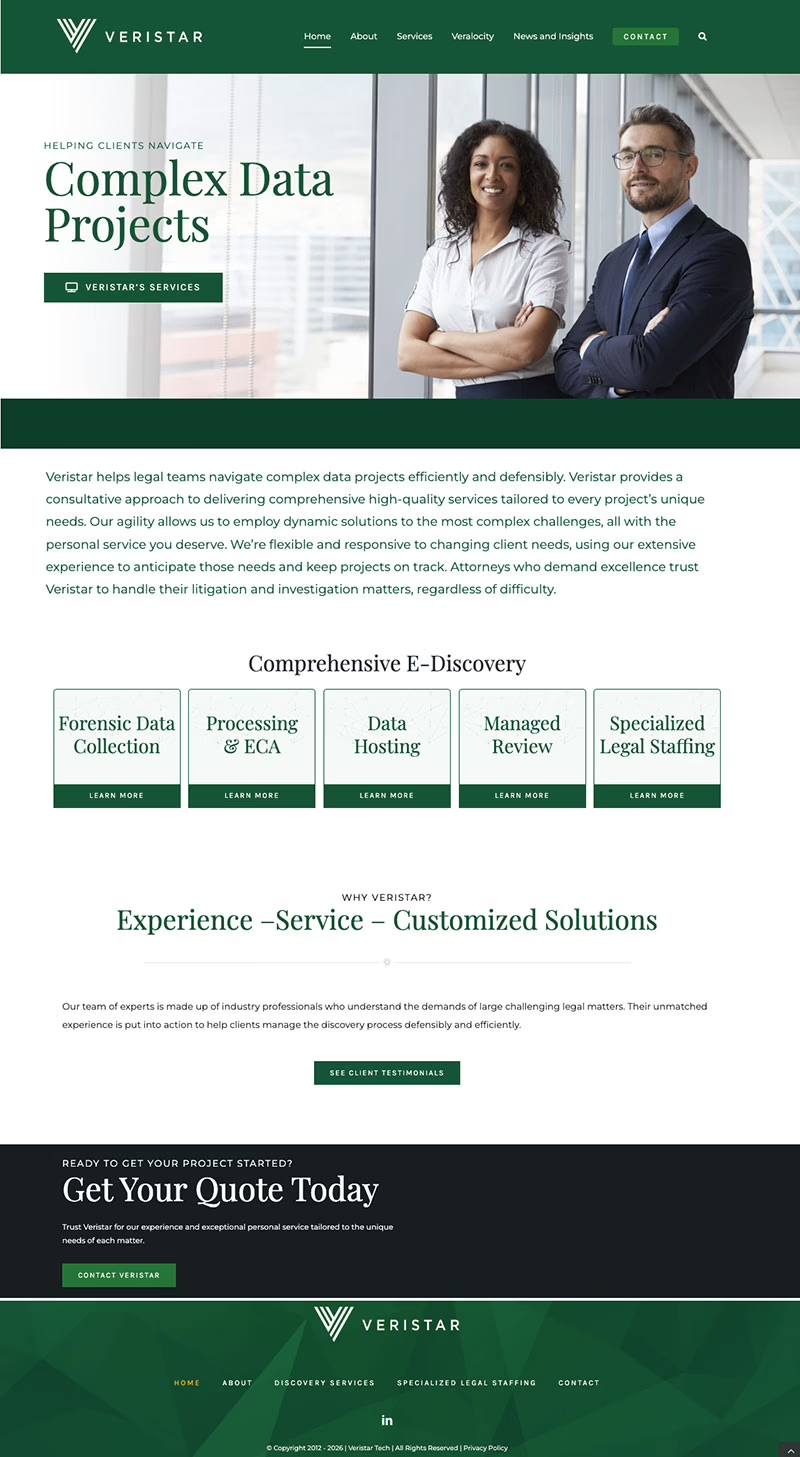
Veristar WordPress Website Project
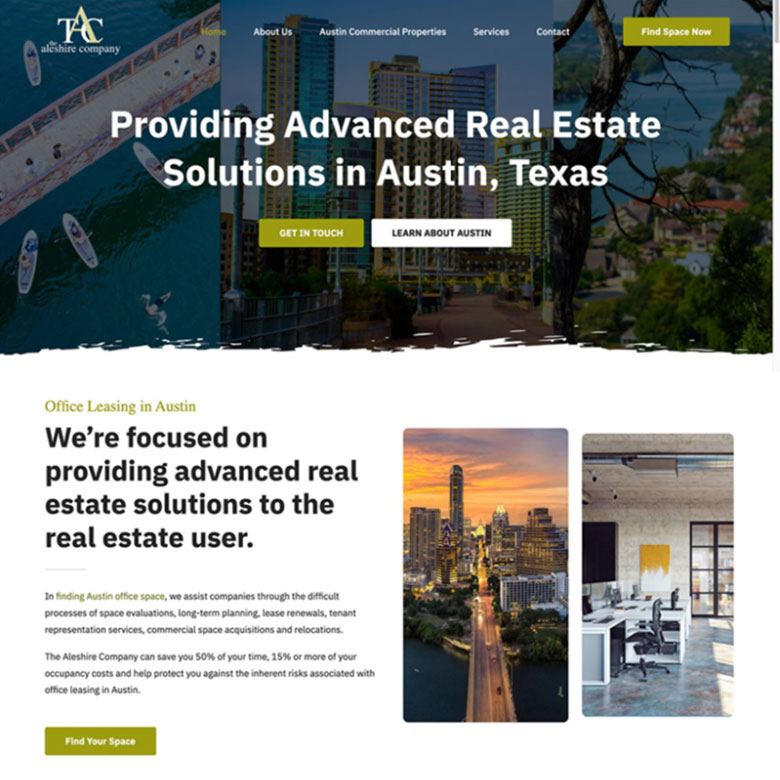
Real Estate Company Website
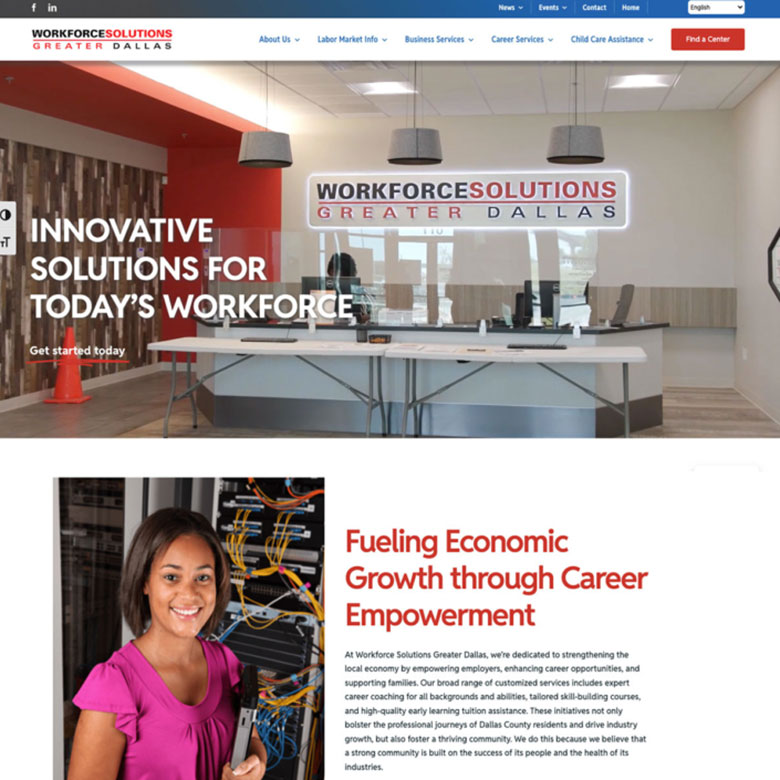
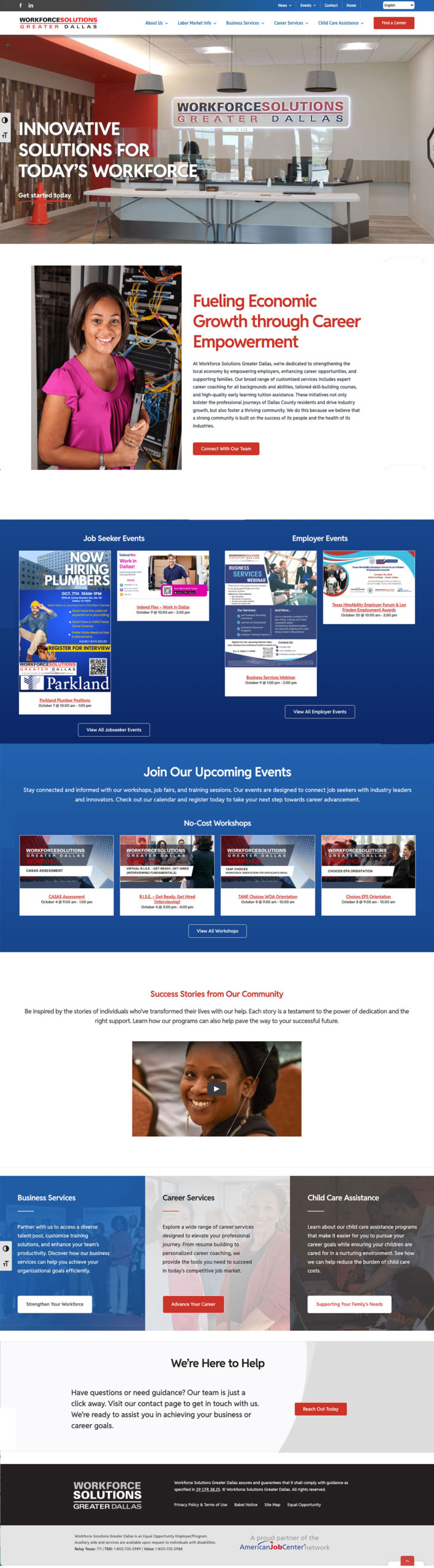
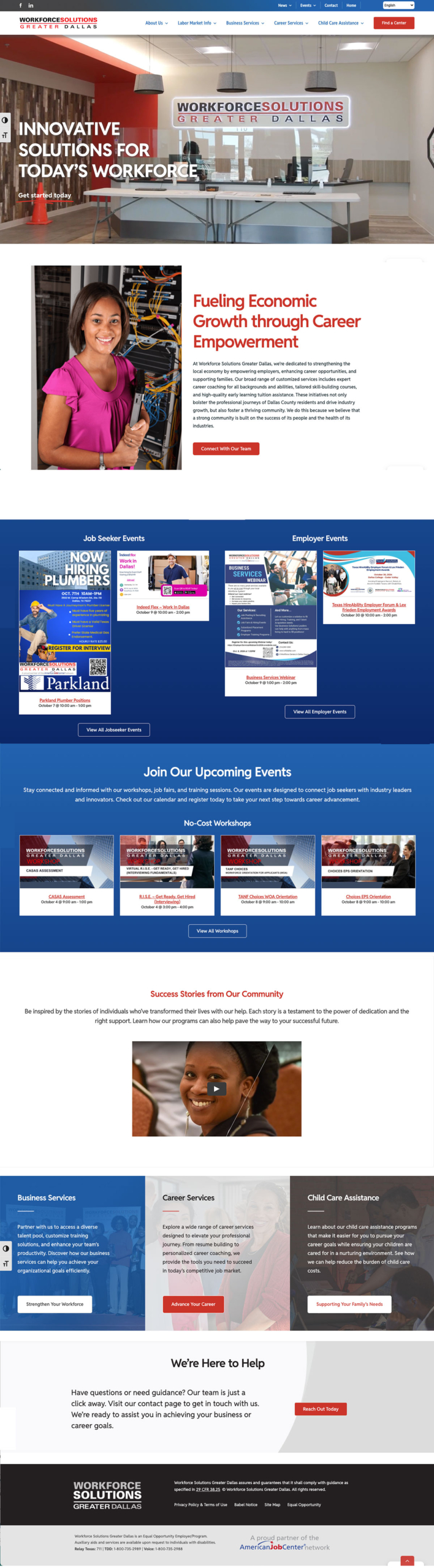
Workforce Solutions Website Redesign
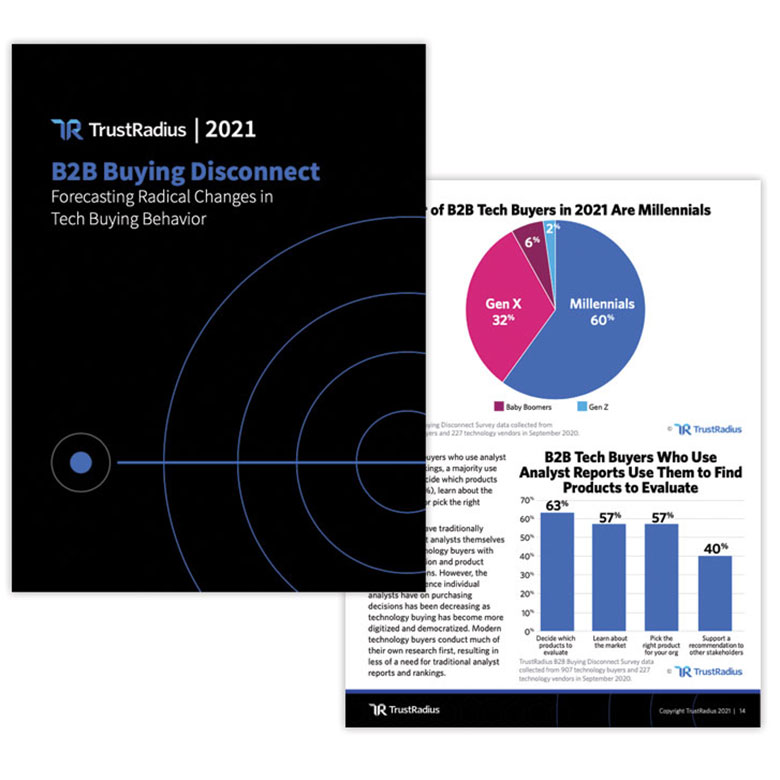
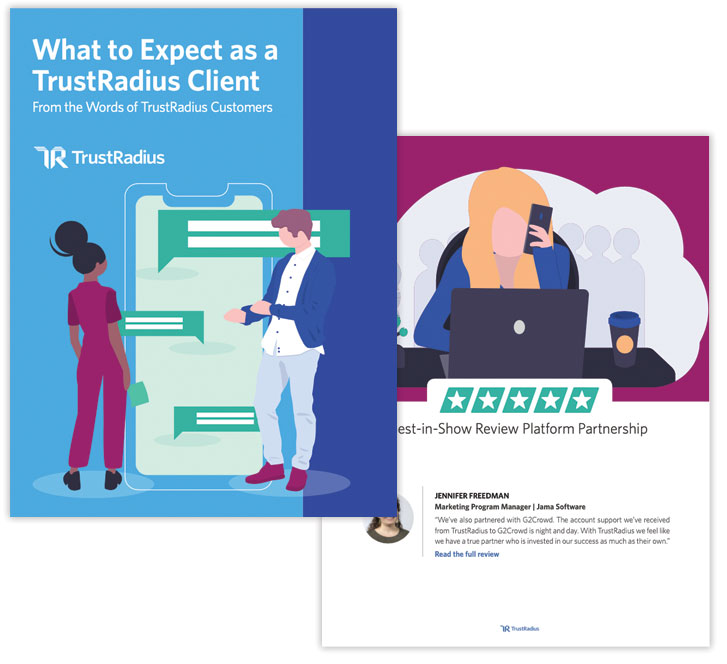
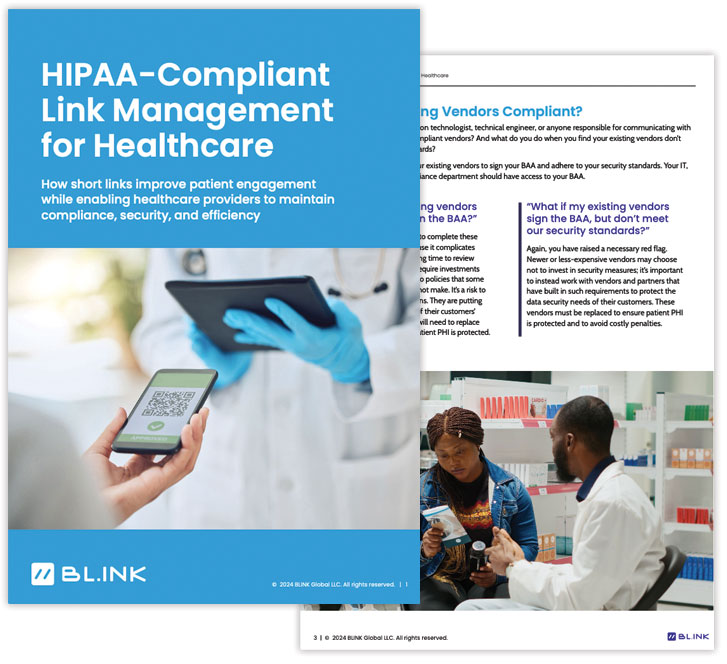
Ebook Design Project
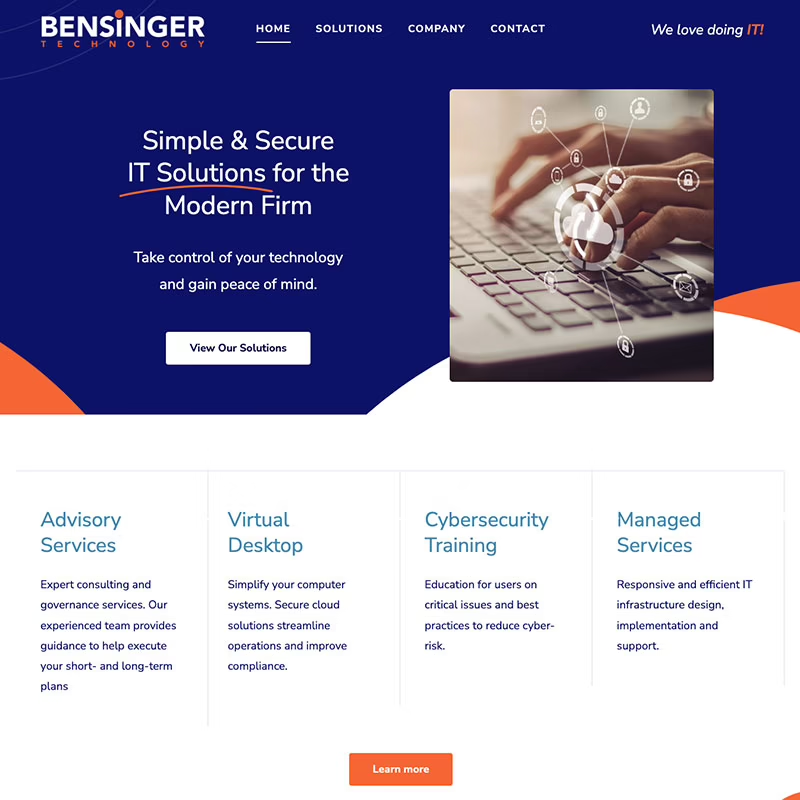
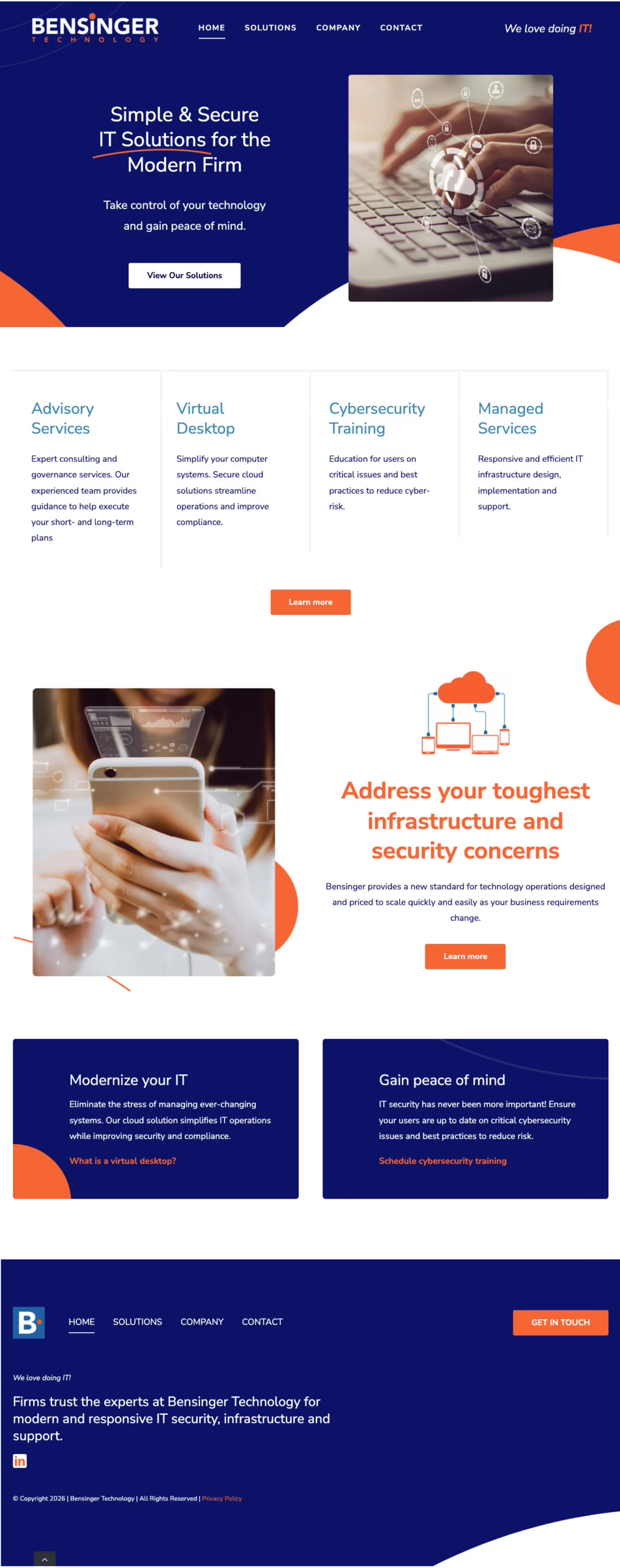
WordPress Website Design Project
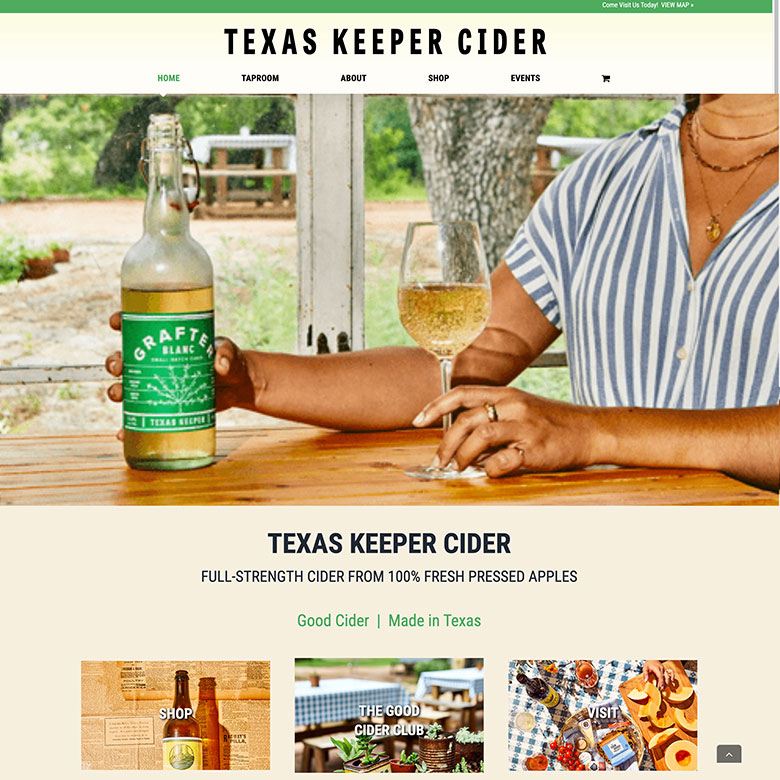
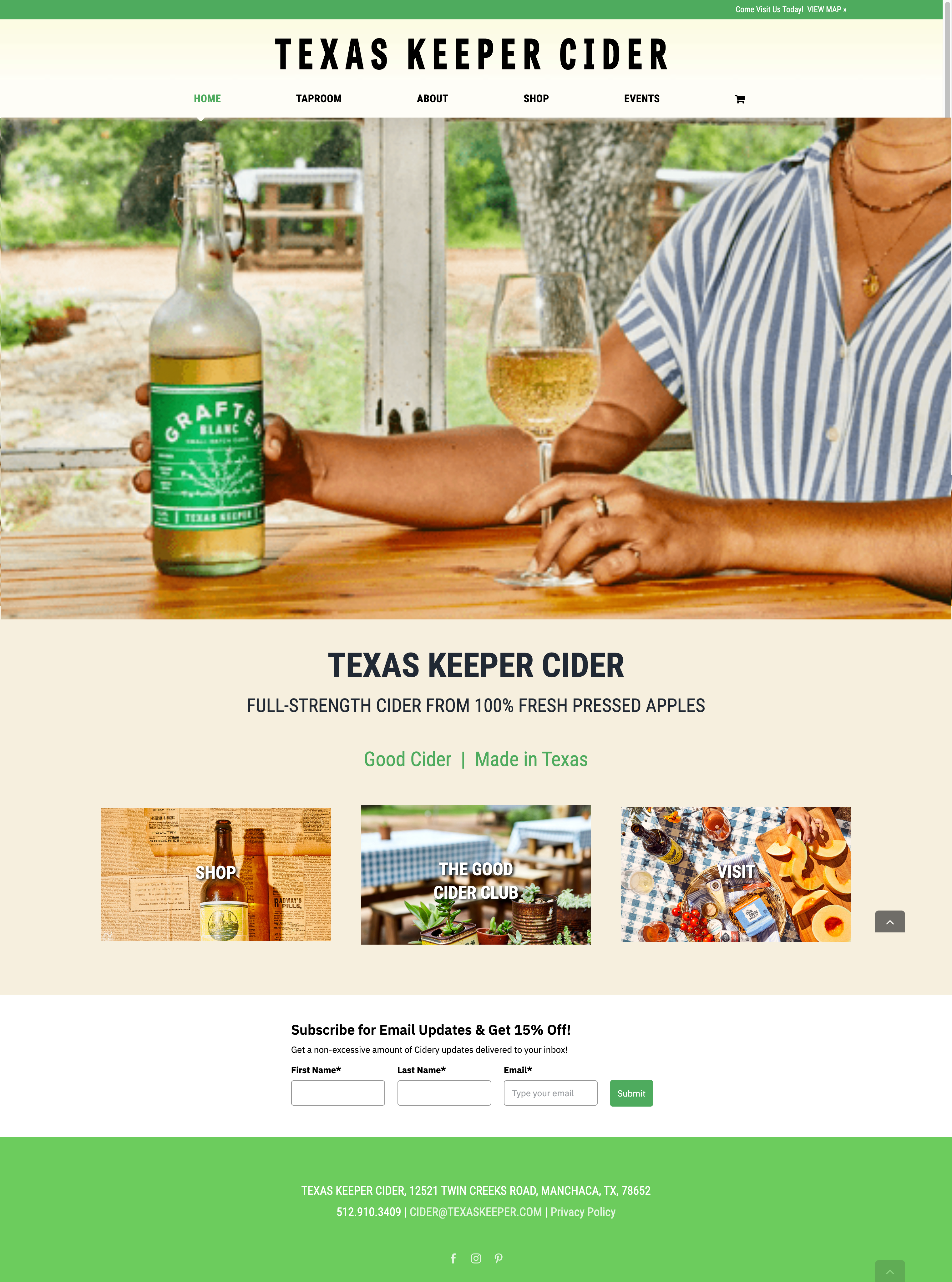
Texas Keeper Cider WordPress website redesign
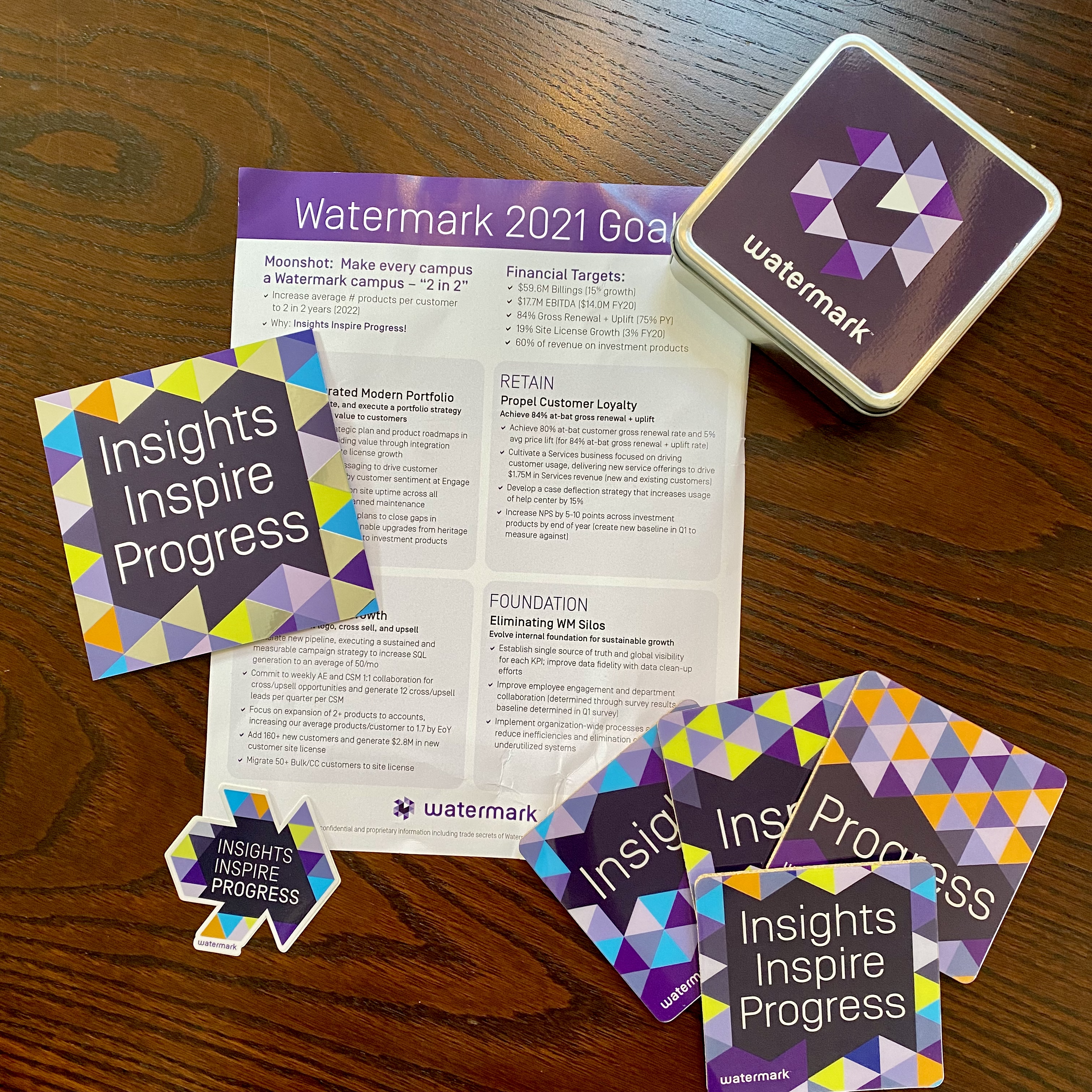
Branding & Promotional Design
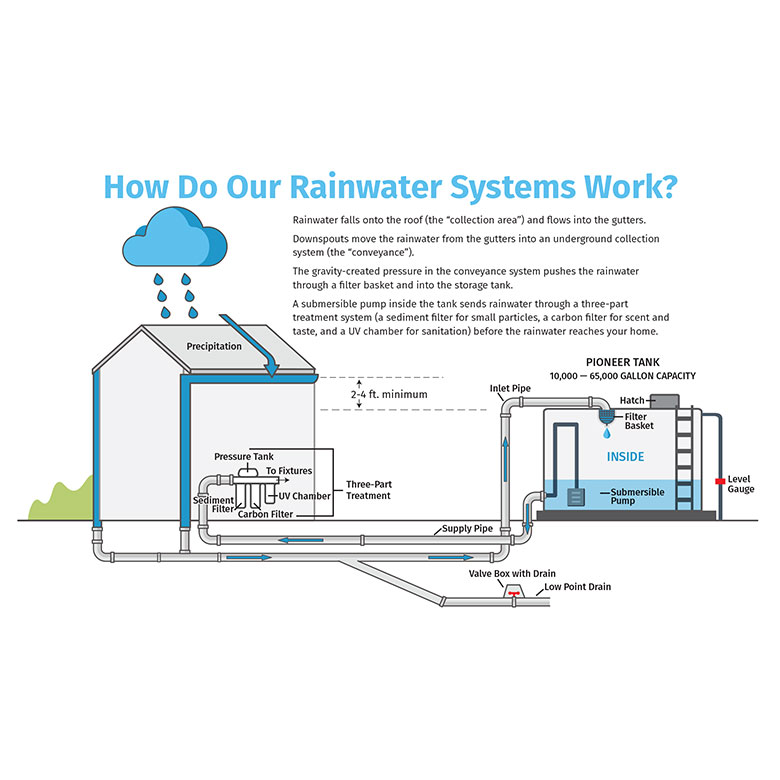
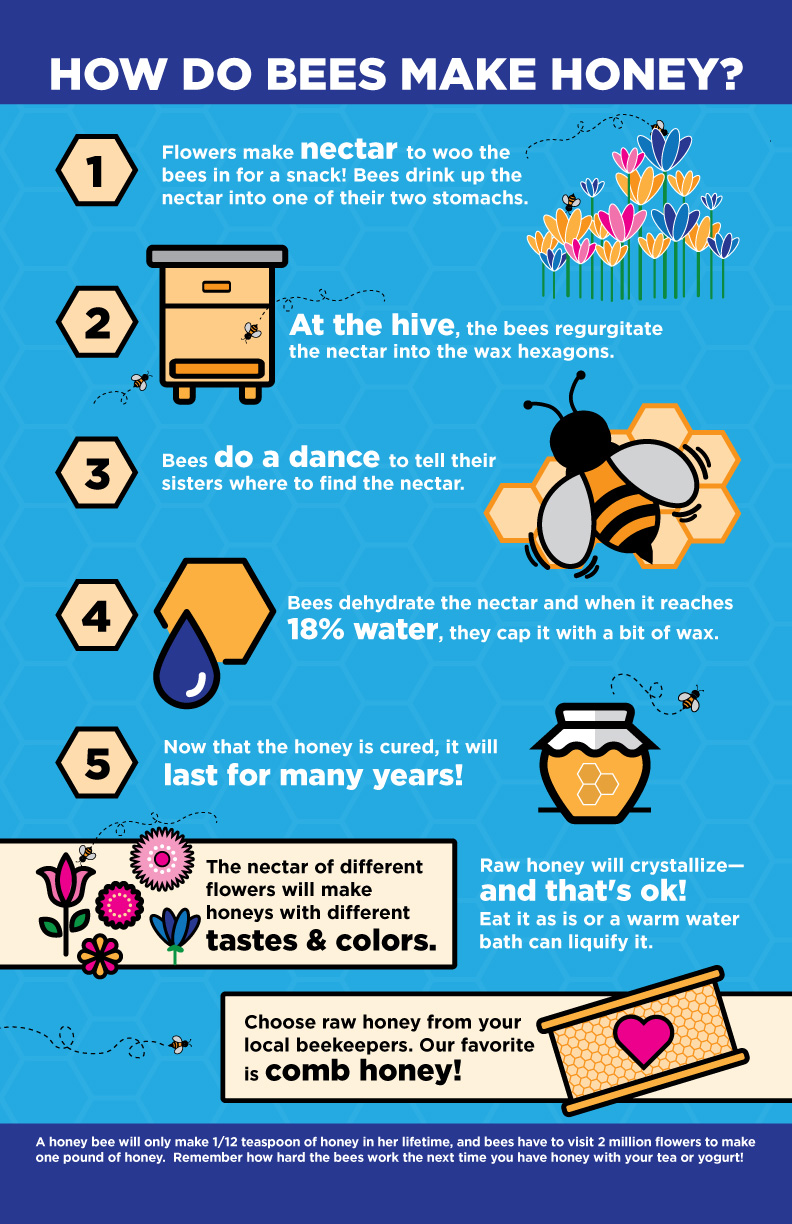
Rainwater Infographic Design
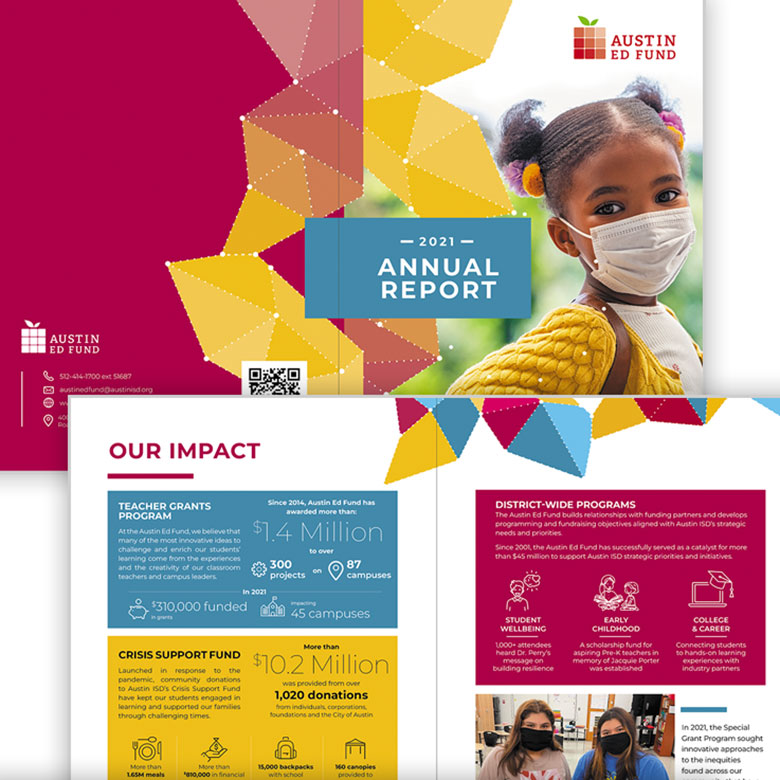
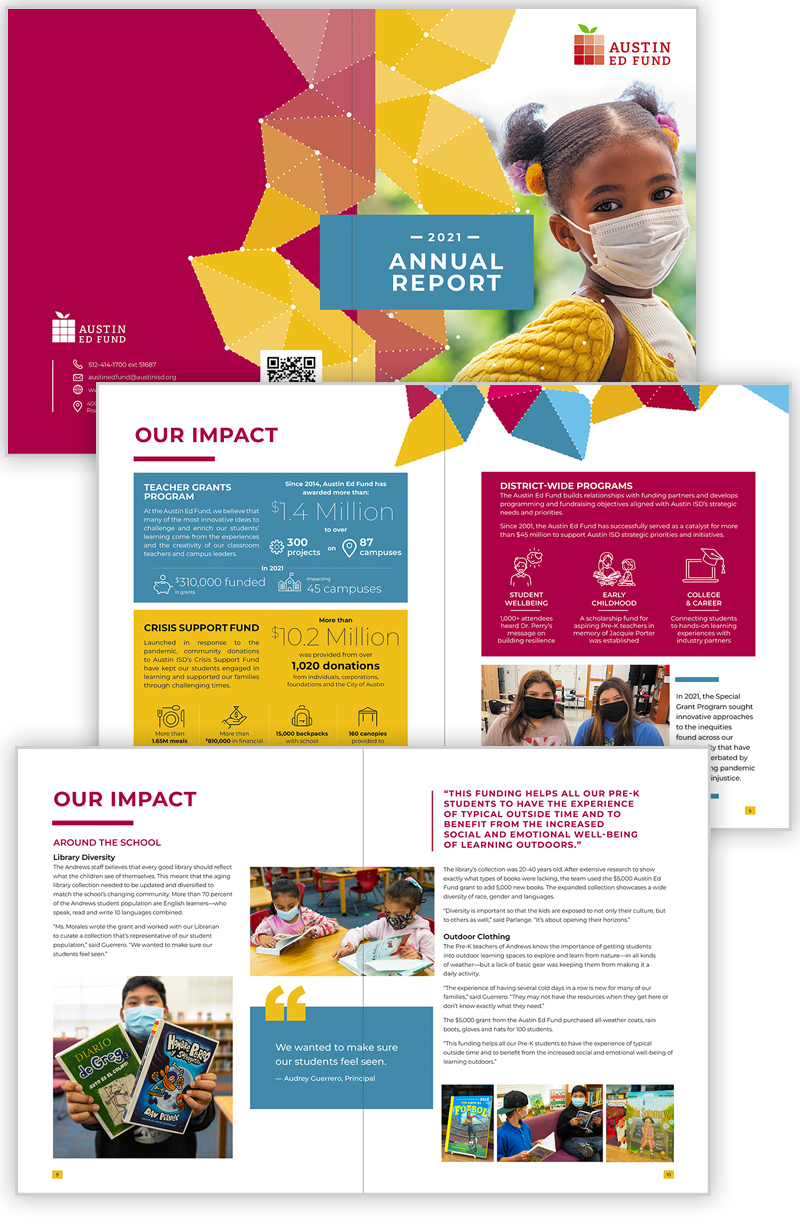
Austin Ed Fund Annual Report Design Project
HOA Logo Design

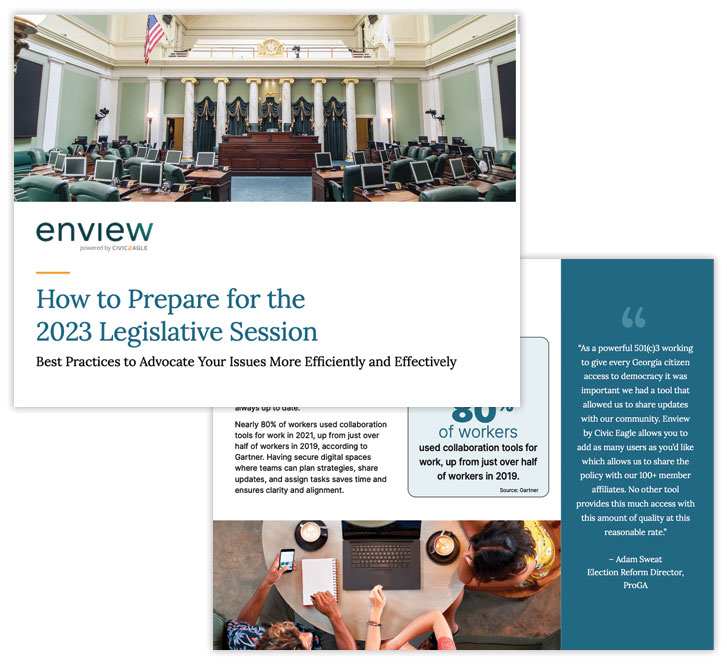
Whitepaper Project Design

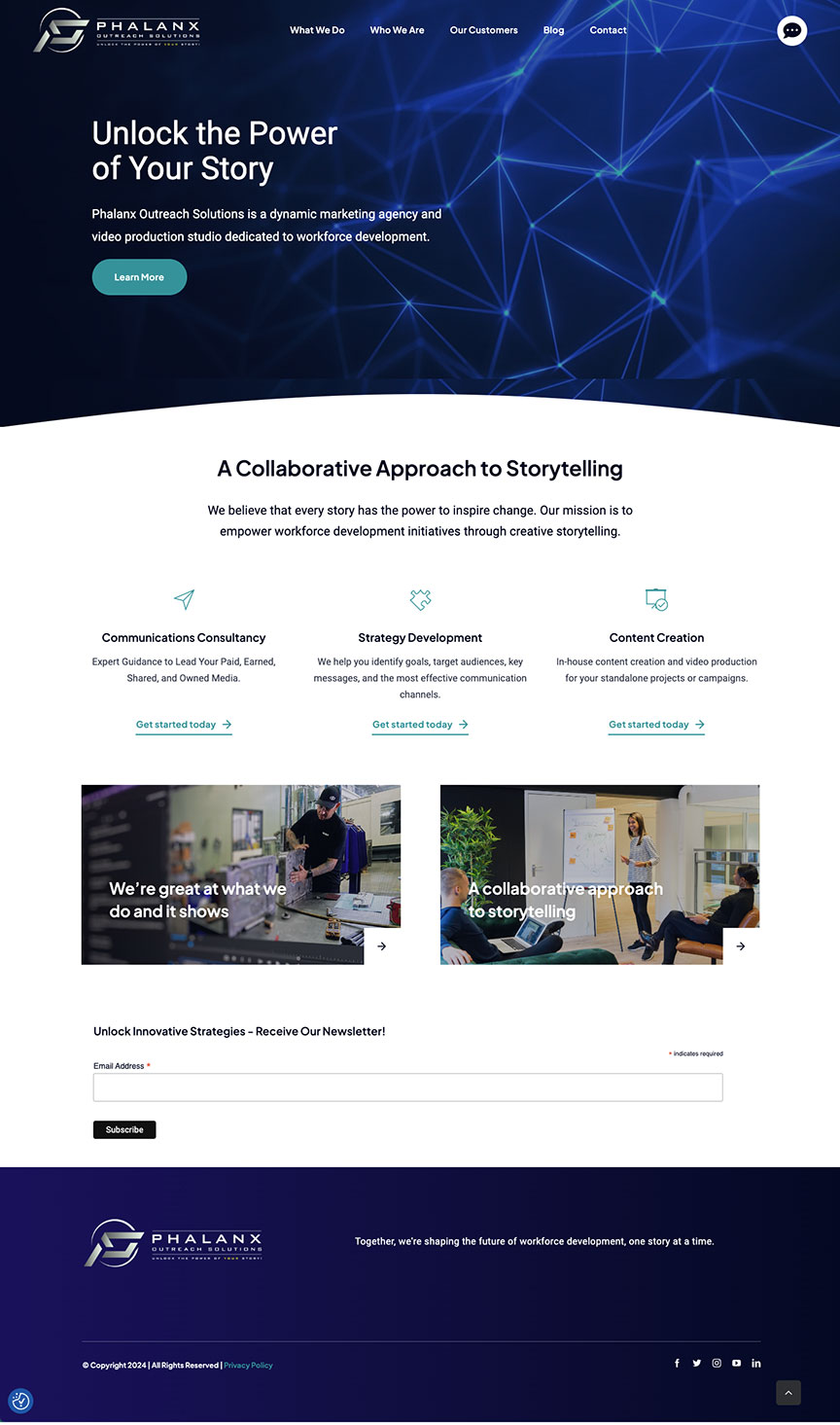
Phalanx Outreach WordPress Website Design
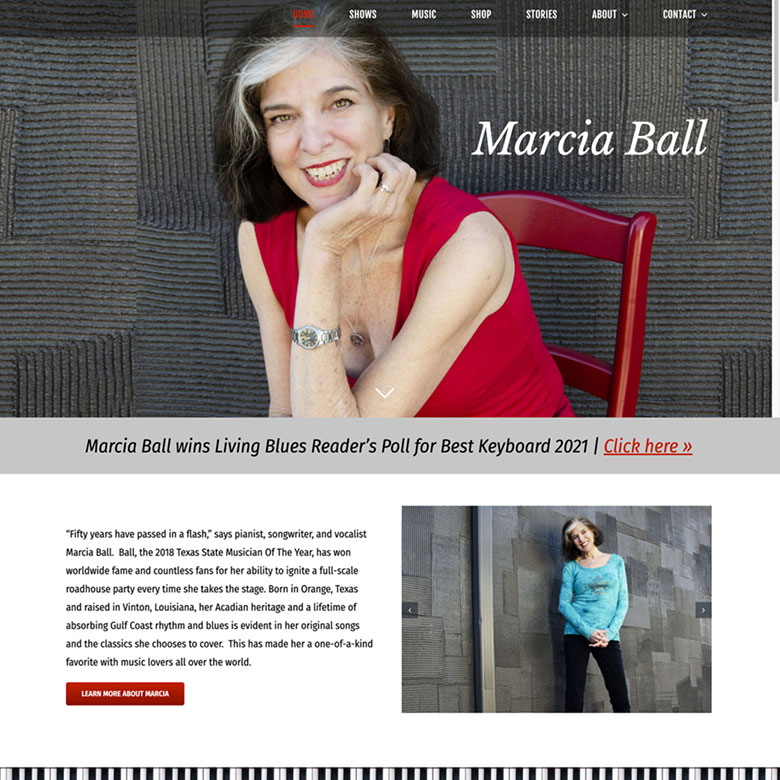
Marcia Ball WordPress Website Design
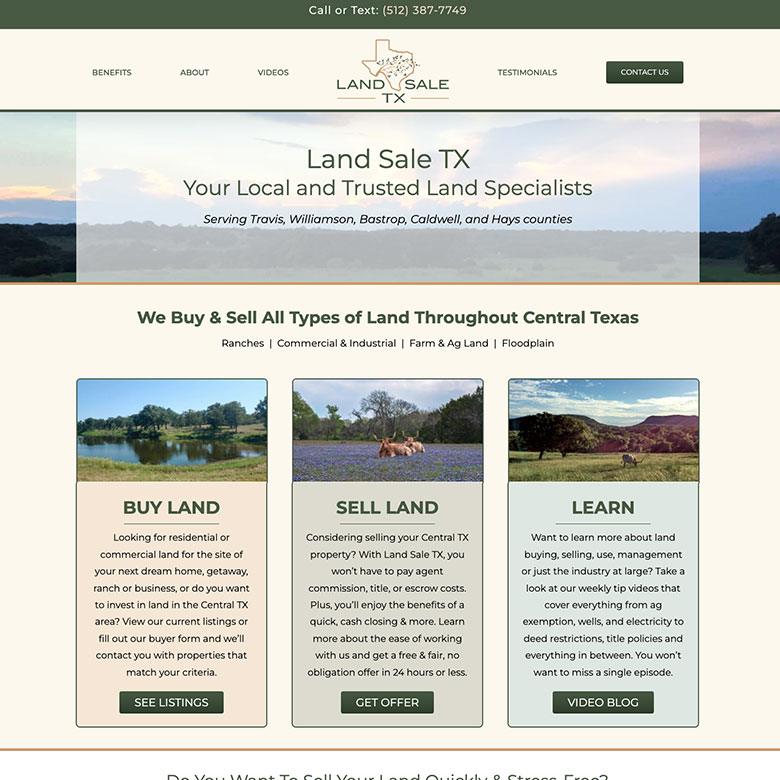
Land Sale TX WordPress Website Design
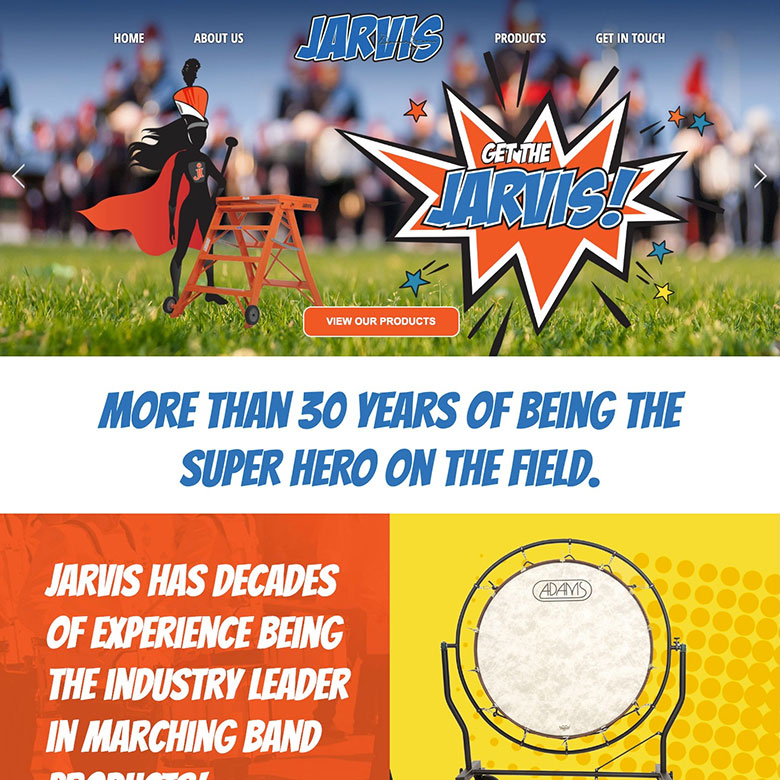
Jarvis Marching Band website design

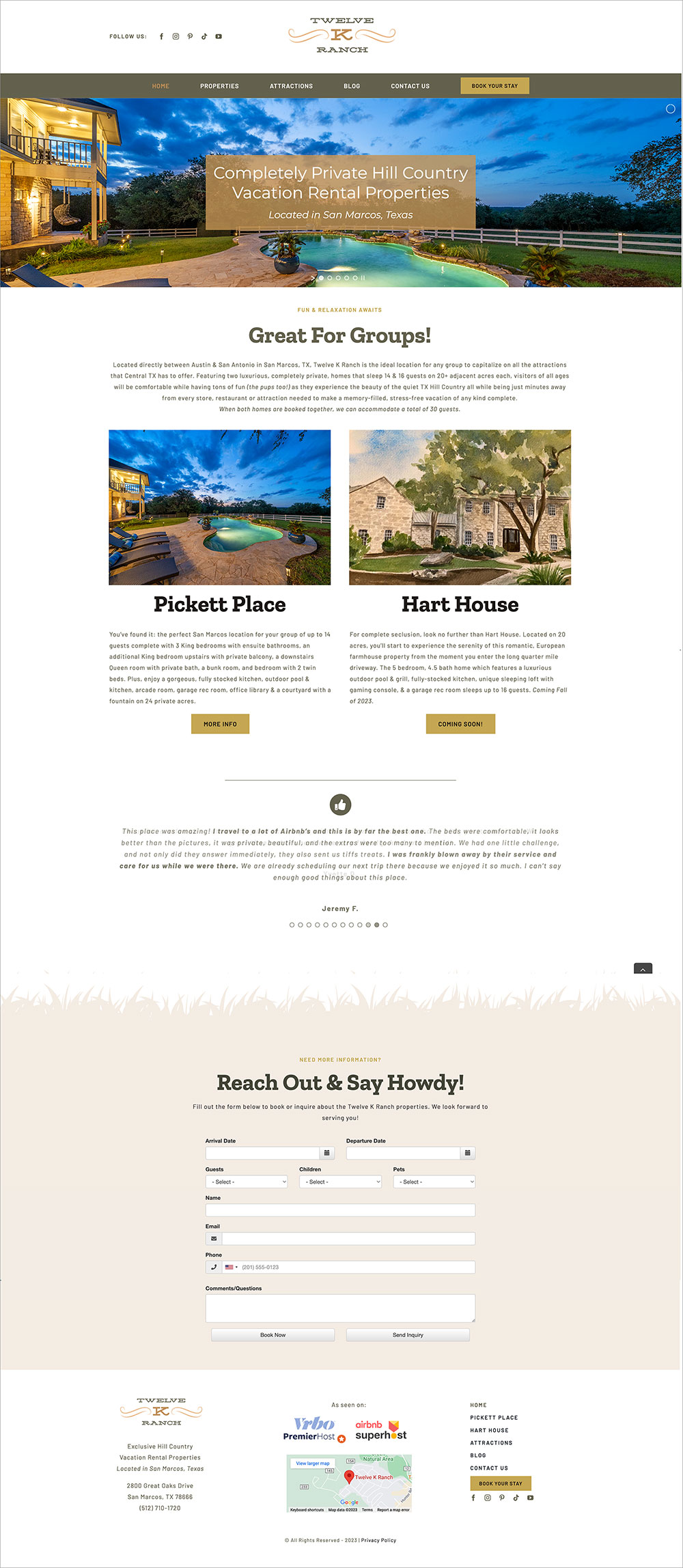
Twelve K Ranch – WordPress Website Project
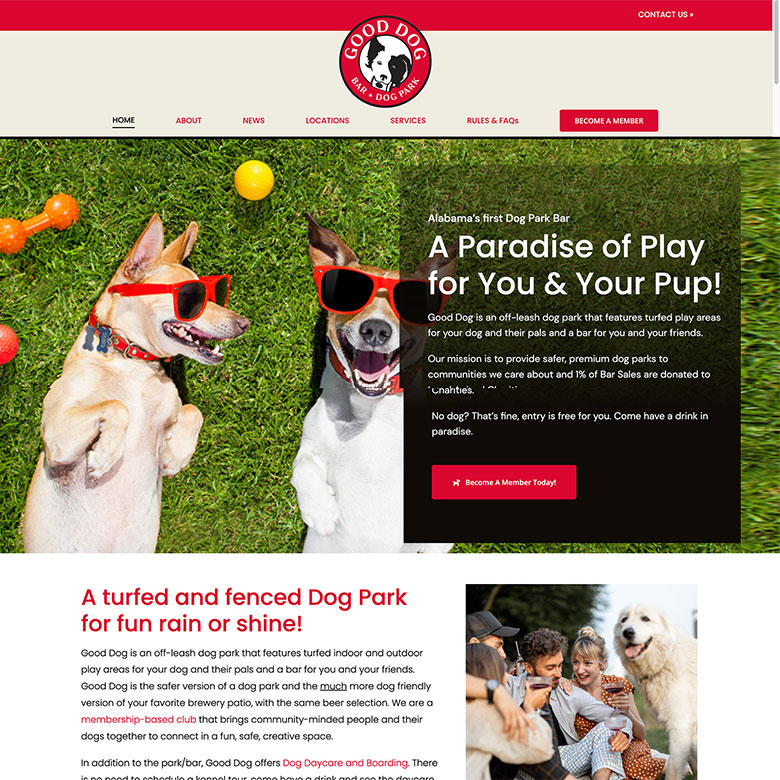
Good Dog Dog Park
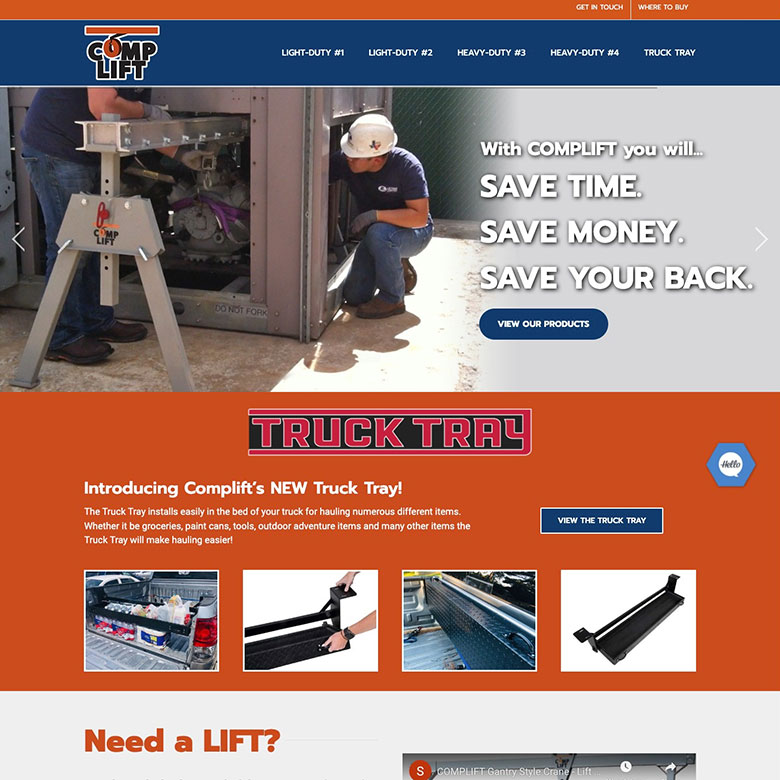
CompLift
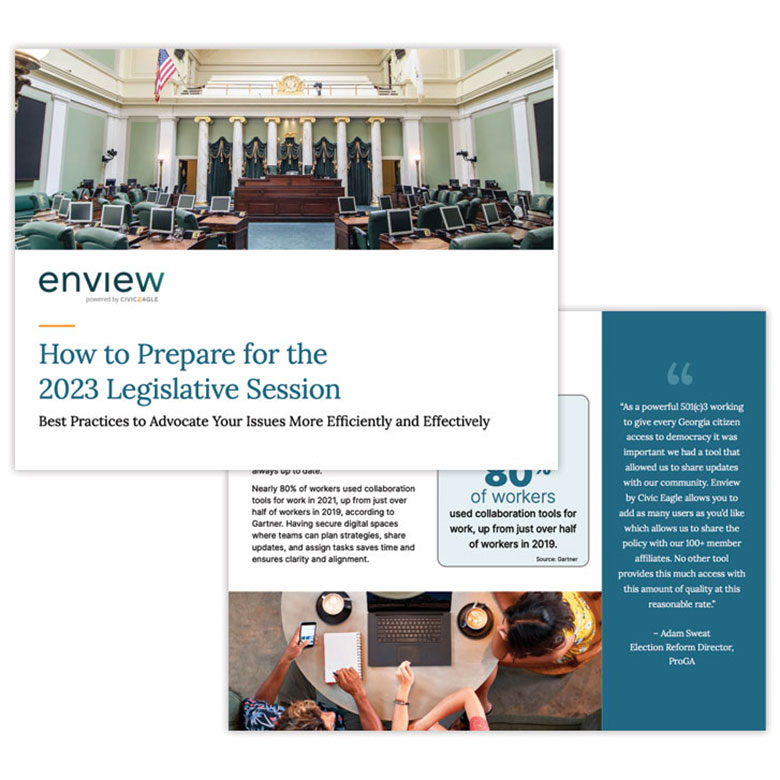
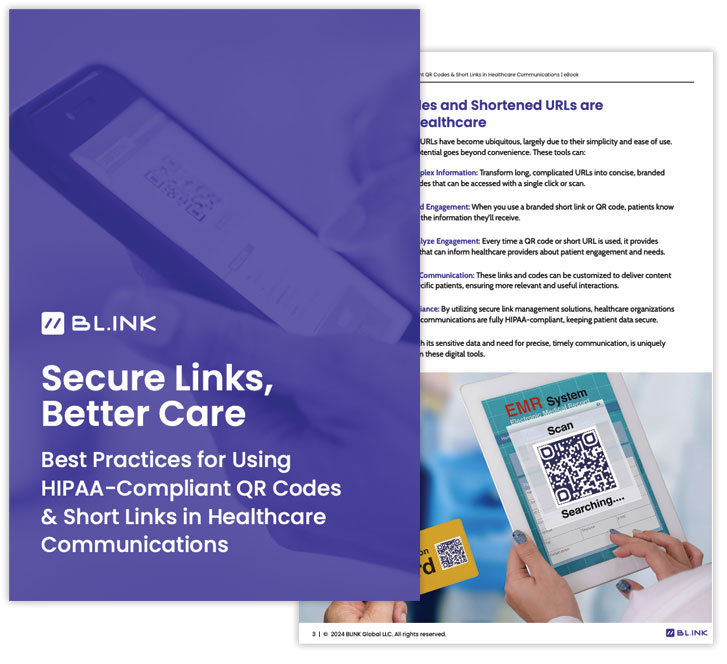
Ebook Project Design

Event Venue Logo Design
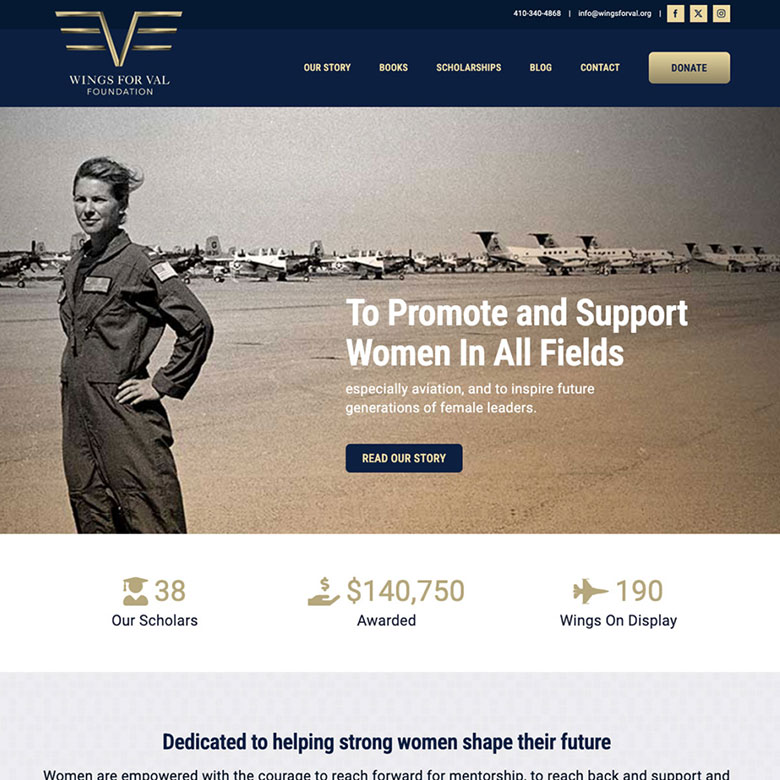
Home
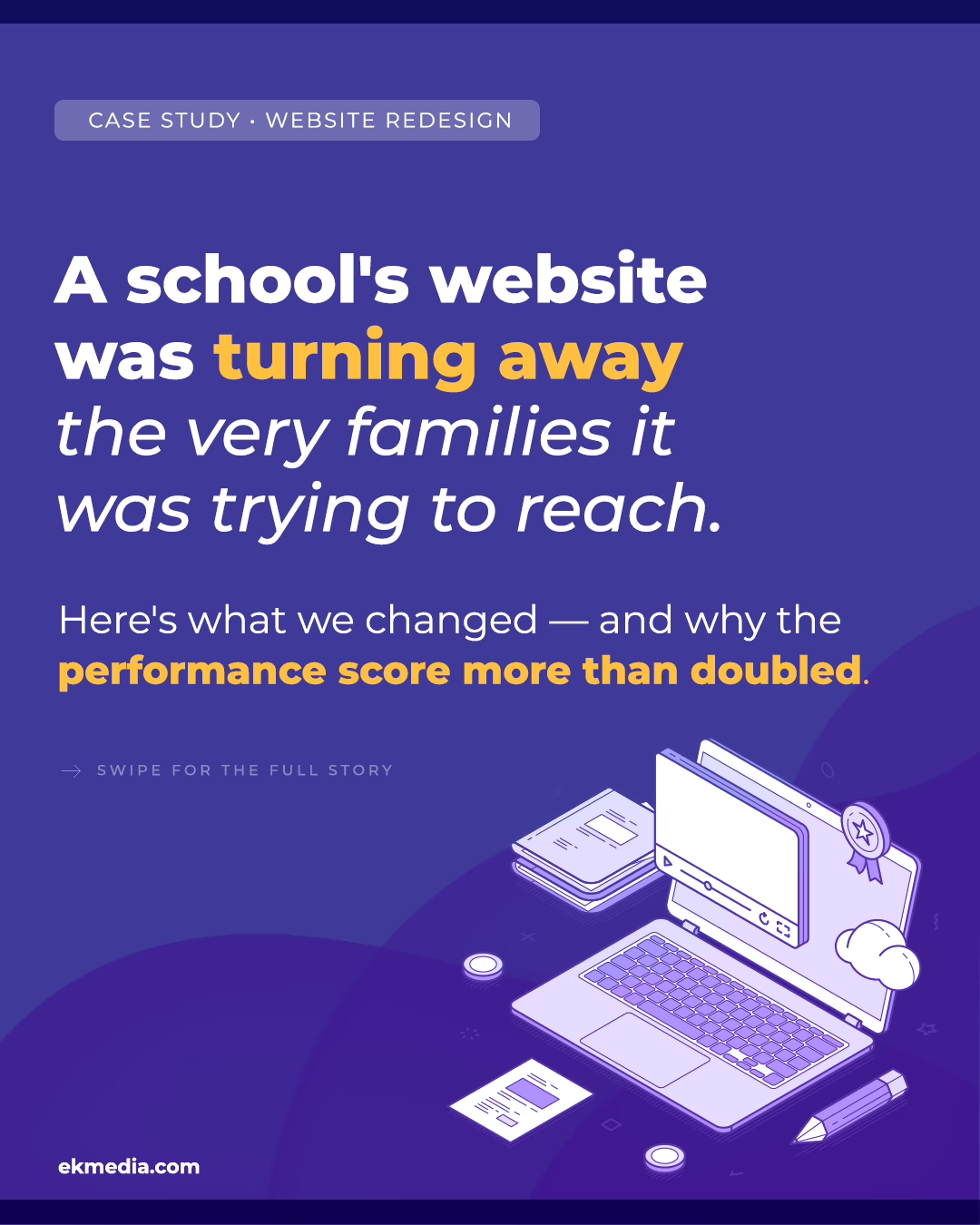
About ekMEDIA
I’m Melissa (Ek) Taylor, the creative force behind ekMEDIA. With 27+ years of experience, I specialize in WordPress, print, and social media design, helping businesses grow through tailored, engaging design solutions.
My clients include businesses across the country in many different industries. I enjoy working directly with business owners to collaborate and build engaging design pieces to help your business grow.
Working out of my home office in Hye, Texas, I enjoy DIY projects both in and outside of the house, relaxing with Texas wines on the patio, and reading psychological thrillers.

Melissa is an incredible creative talent and a joy to work with. She has a knack for turning ideas into stunning designs, whether it is a beautiful website or a unique design concept. Her work is not just visually impressive—it’s functional and perfectly tailored to her clients’ needs.
Design Services
It’s not easy to find a designer who provides strategic print & website services (and coding too) together, but now you have! I can build your website then create print pieces and email blasts to help promote it. Not only that, I answer emails promptly and will stay dedicated to your project until completion.
WordPress Website Design
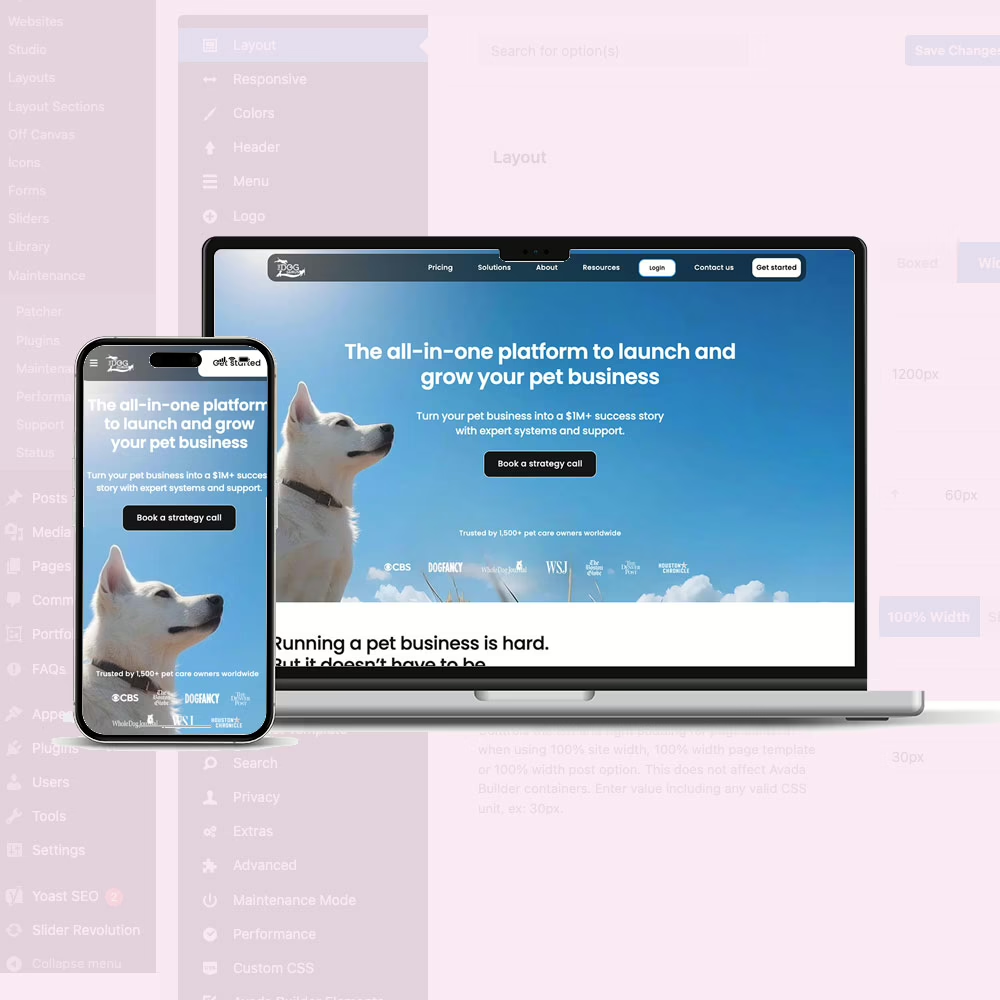
WordPress gives you the flexibility to edit your site on your own. I’ll install and fully customize a theme to match your brand, incorporating your colors, logos, and other design elements. Plus, I’ll install essential plug-ins for security, SEO, and other key functionalities to make sure your site runs smoothly.
Infographic Design
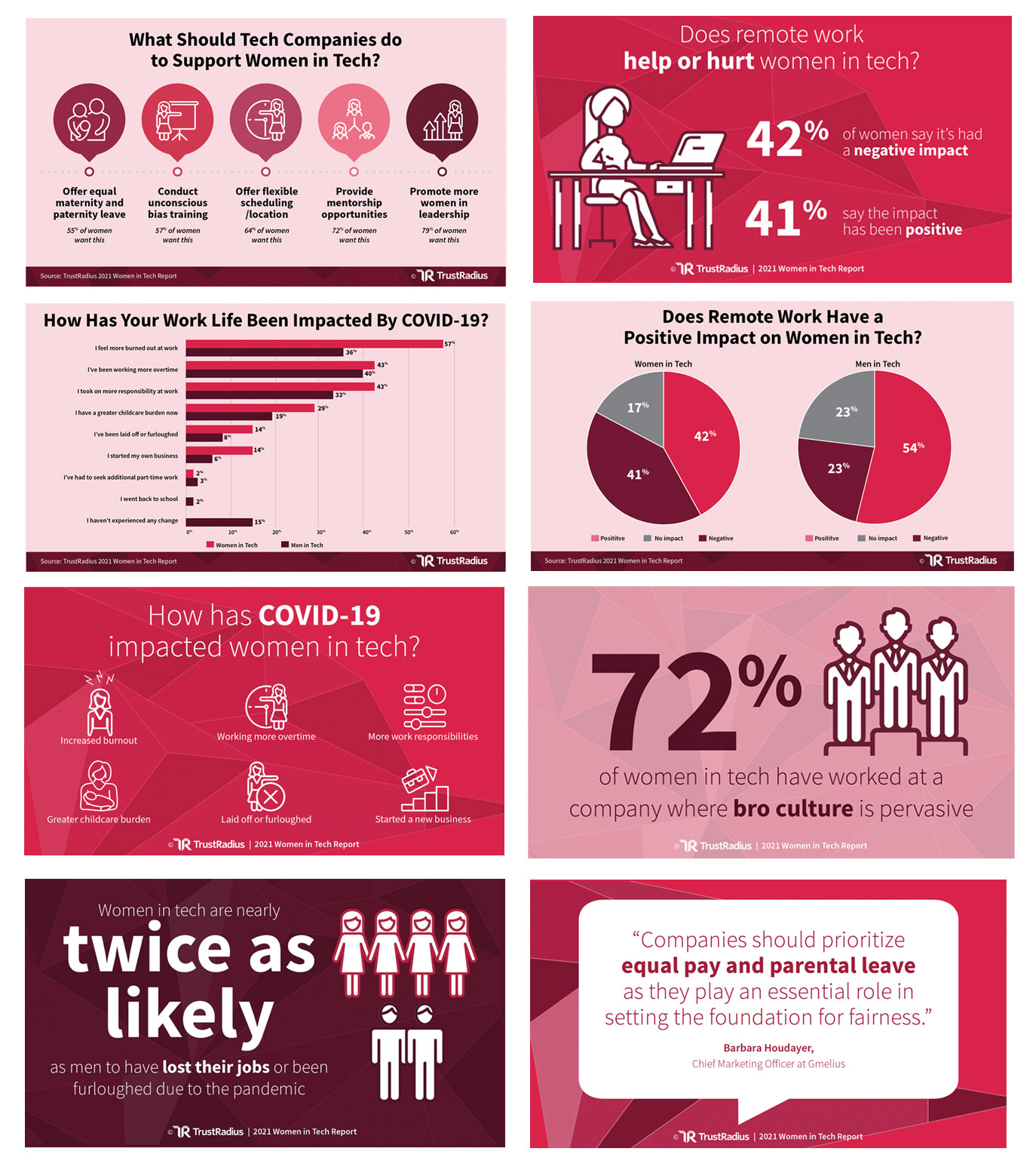
I design various print materials including business cards, letterheads, brochures, flyers, posters and infographics. Infographics are a powerful way to simplify complex data. Whether you’re looking to spice up an annual report or present key metrics in an engaging way, I’ll take your data and turn it into a visually compelling design that’s easy to understand and share.
Logo & Branding Design
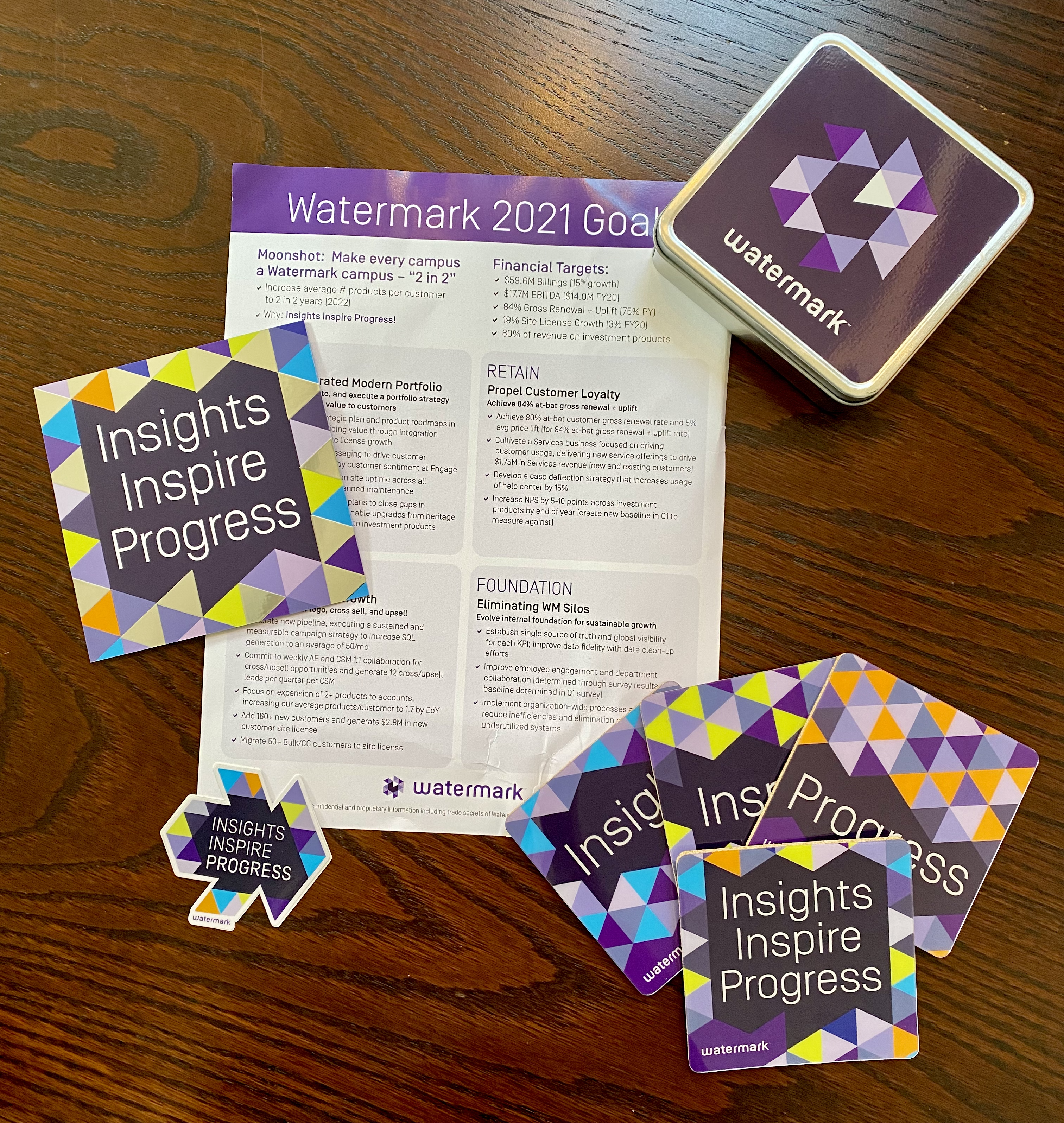
Whether you’re launching a new business or looking to refresh your existing brand, I can create a modern, memorable logo that’s perfect for your business. I can create a brand system that includes your company voice, colors, imagery, and design elements so your brand stays consistent for better recognition. Together, we’ll design something that stands out and represents your brand identity clearly.
Print Design
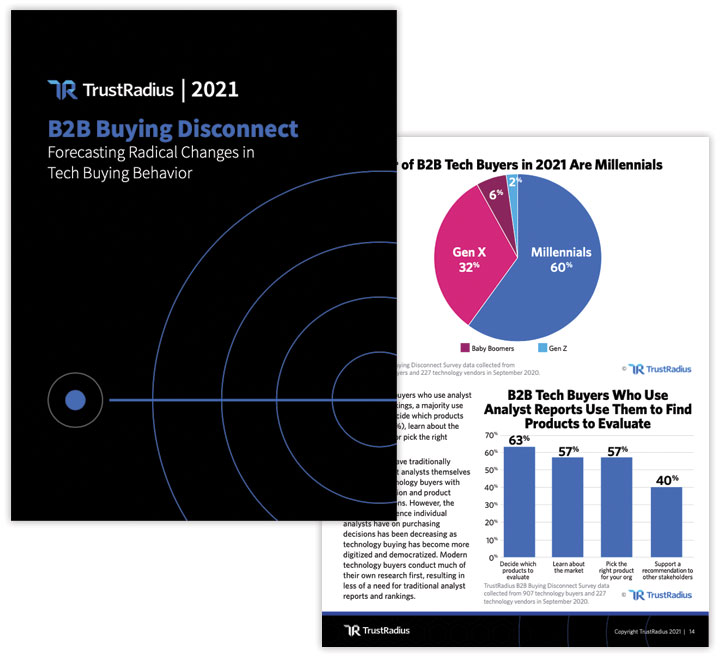
I create visually stunning and highly effective business documents that communicate your message with clarity and style. Whether you need ebooks, whitepapers, sell sheets, or product documents, I use your brand guidelines to ensure every piece reflects your identity and integrates cohesively with your website and other marketing materials.
Don’t take my word for it…take theirs.
Melissa is an incredible creative talent and a joy to work with. She has a knack for turning ideas into stunning designs, whether it is a beautiful website or a unique design concept. Her work is not just visually impressive—it’s functional and perfectly tailored to her clients’ needs.
Owner,
Global Marketing and PR Agency

Melissa was our web designer for more than 20 years and I was always impressed by her turn around time, her sense of design, and her great ideas. She not only designed our website, but also ad design and logo design for other entities. Melissa is a true professional and we highly recommend her.
Courtney Emken, Owner
DogBoy’s Dog Ranch
I would recommend Melissa to anyone seeking a creative digital resource. She wraps intelligence, discipline, creativity and technical prowess with a warm smile and infectiously positive attitude — and she gets the job done right, the first time.
Charles Zug, VP Marketing
HomeAway
Frequently Asked Questions
It’s not easy to find a designer who provides strategic print & website services (and coding too) together, but now you have! I can build your website then create print pieces and email blasts to help promote it. Not only that, I answer emails promptly and will stay dedicated to your project until completion. Have questions? Find the answers below:
Want to know more about WordPress, the software we use to build websites?
Click here to read our WordPress specific FAQs »
Ready to discuss your project?
Fill out the contact form with a few of your project details, and I’ll respond promptly! Let’s bring your ideas to life!